
Tip & Trick
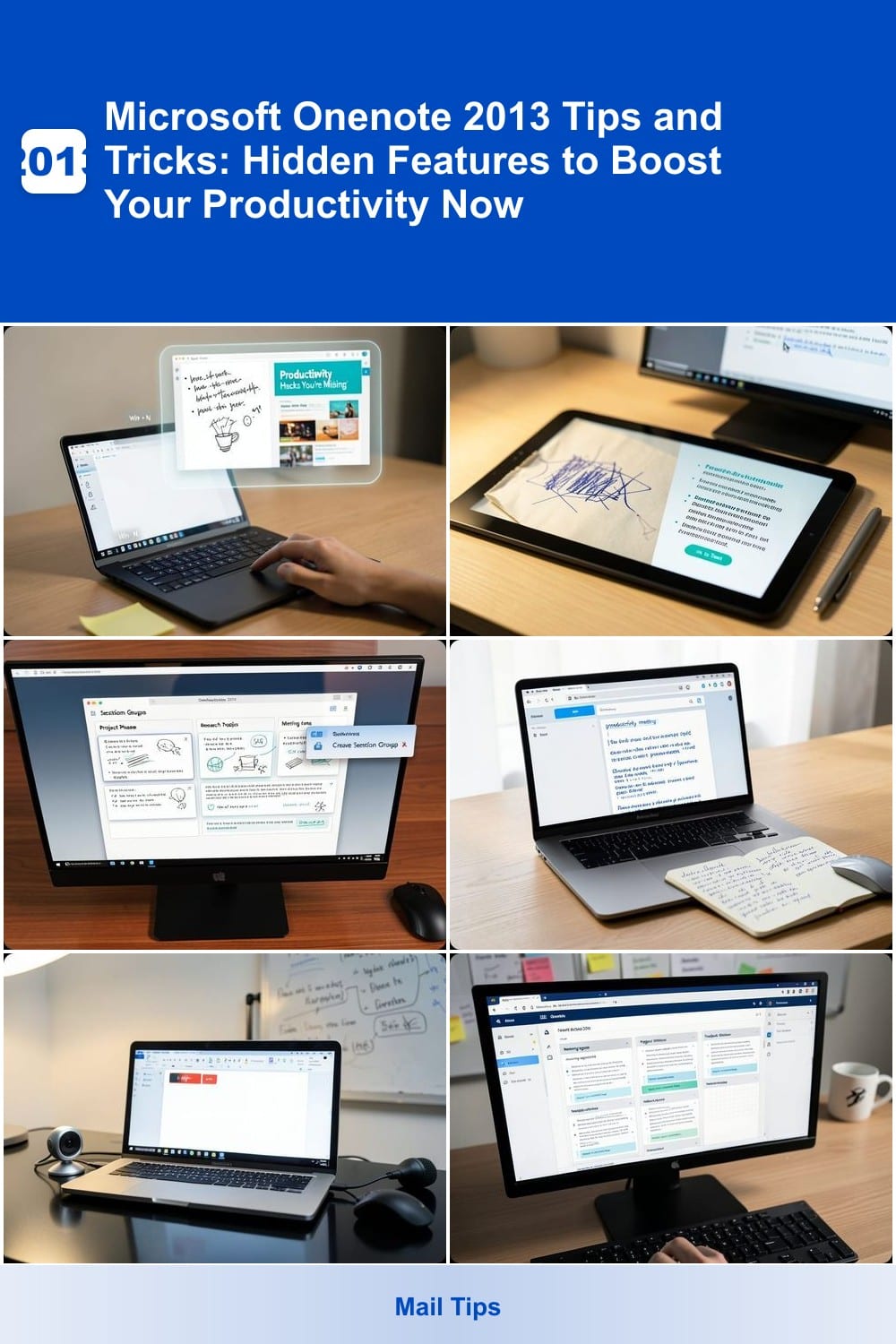
Microsoft OneNote 2013 is a powerhouse for organization, yet many users overlook its most powerful features. These seven hidden tips and tricks will transform how you capture, organize, and retrieve information—saving you hours of manual work every week.
Quick Capture with OneNote Quick Notes
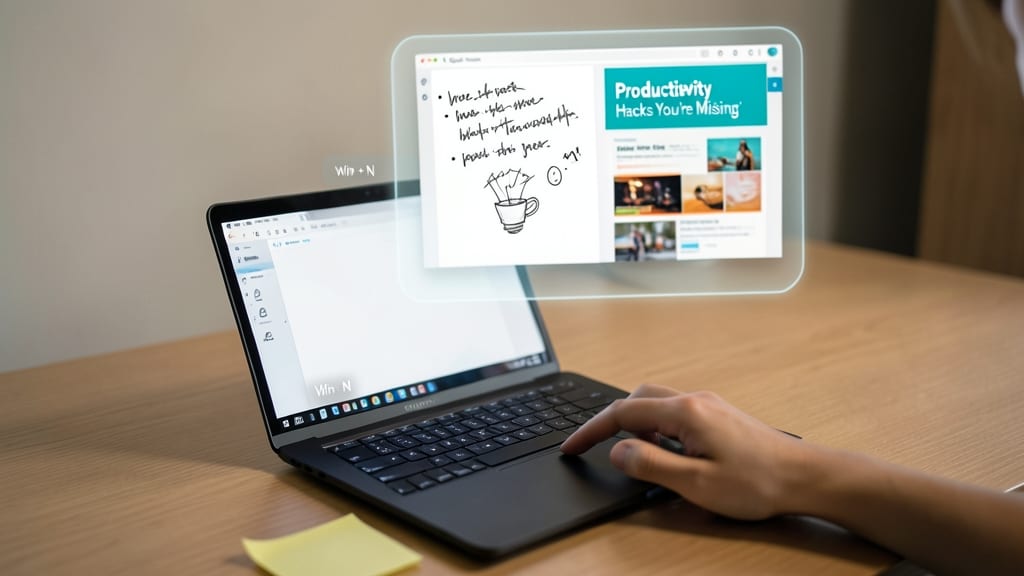
Forget fumbling to open OneNote when inspiration strikes—Quick Notes lets you capture ideas in seconds, no setup required. With a simple keyboard shortcut (Win + N), a floating window appears instantly, ready for text, sketches, or quick web clippings. This lightweight mode is perfect for jotting down meeting highlights, sketching diagrams, or saving a fleeting thought before it vanishes.
The magic happens when you’re on the go: Quick Notes syncs automatically with your full notebook, so nothing gets lost. You can even drag images or text directly from other apps into the window—no copying or pasting needed. The feature works seamlessly with touch, stylus, or keyboard input, making it adaptable to any workflow.
Ideal for professionals who thrive on spontaneity—think developers brainstorming code snippets, designers sketching wireframes, or managers capturing action items mid-call—Quick Notes keeps your creative flow uninterrupted. Try it next time you’re in a hurry to save time and sanity. 💻
Convert Handwriting to Text with Ink to Text
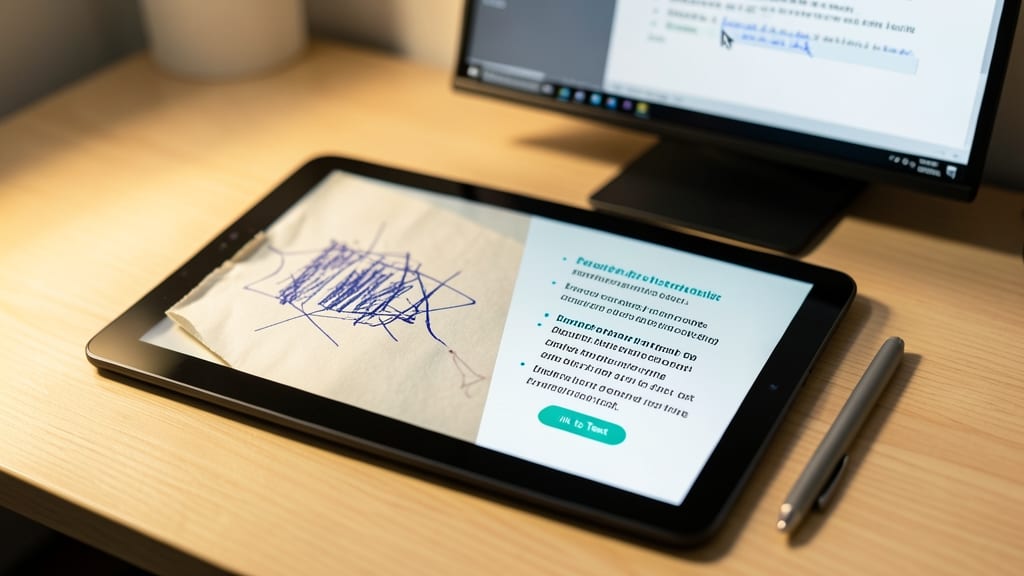
Ever scribbled a brilliant idea on paper but wished you could edit it digitally? OneNote 2013’s Ink to Text feature bridges that gap—converting handwritten notes into searchable, editable text with just a few clicks. No more retyping or scanning; your pen input becomes instantly usable.
To use it, simply highlight your handwritten text, right-click, and select "Copy Text from Picture" (or use the shortcut Ctrl+Shift+T). OneNote’s OCR engine processes the ink in seconds, converting it into clean, formatted text. Works with stylus, touch, or even printed notes—just paste the image into your notebook first. The feature supports multiple languages and even recognizes handwritten equations or symbols.
This is a lifesaver for students transcribing lecture notes, researchers organizing fieldwork scribbles, or hybrid workers who mix digital and analog input. Try it next time you jot down a meeting agenda—your future self will thank you for the editable backup. ✨
Organize Notes with Section Groups and Tabs
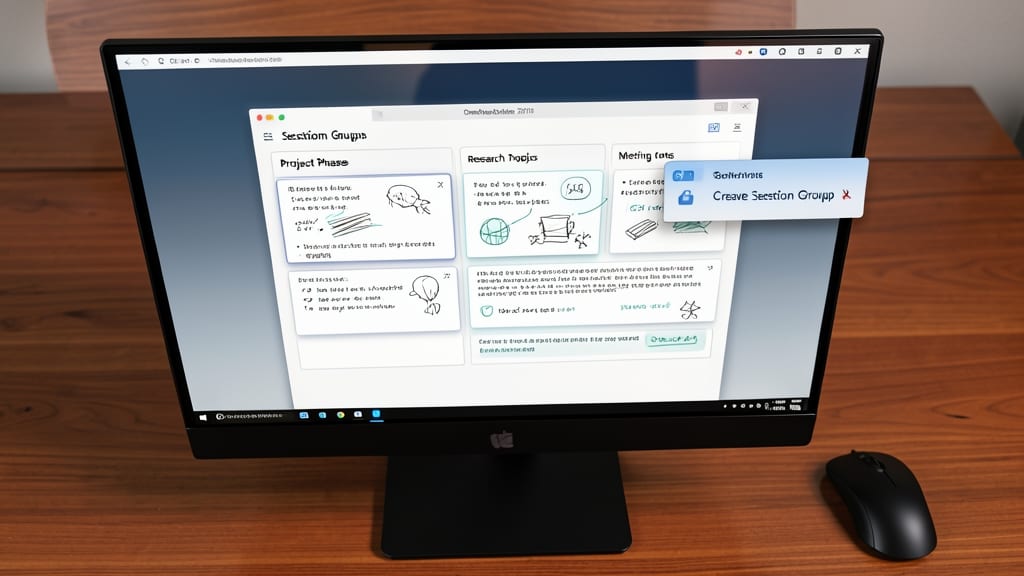
Struggling to keep track of multiple project phases or research topics in OneNote? Section Groups and Tabs turn your notebook into a dynamic workspace—just like a tabbed browser, but for your notes.
Right-click any section in your notebook to create a Section Group, then add tabs for different topics (e.g., "Project A," "Research," or "Meetings"). Each tab stays open independently, letting you switch between them instantly. Color-code groups for visual hierarchy, and use the tabbed interface to focus on one area at a time without clutter. Perfect for managing timelines, client work, or academic research where context-switching is inevitable.
This feature is a game-changer for project managers, researchers, or anyone juggling multiple tasks. Try organizing your next big project this way—your future self will thank you. ✨
Search Handwritten Notes with Optical Character Recognition
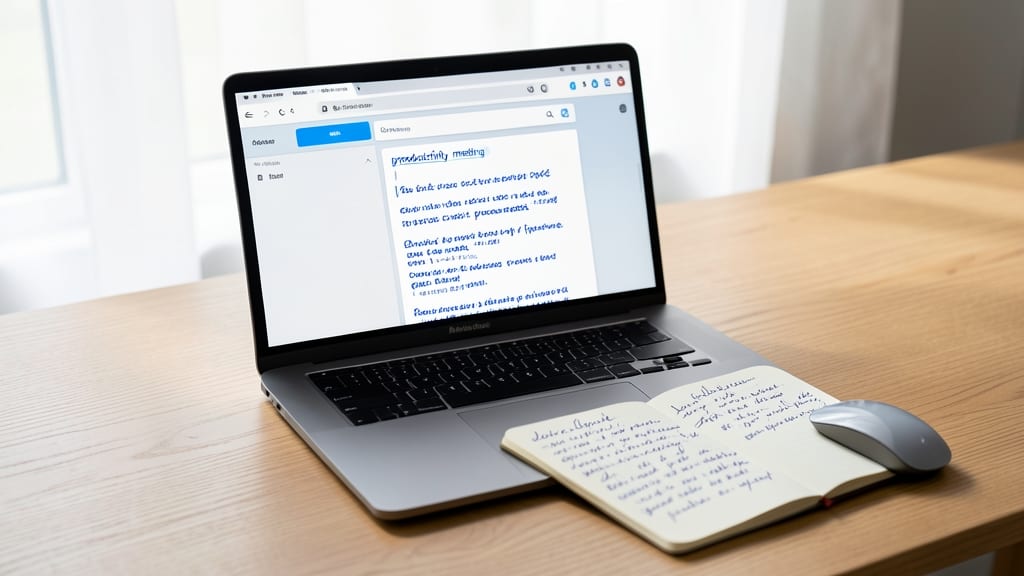
Tired of flipping through handwritten notes to find that one critical phrase? OneNote 2013’s built-in Optical Character Recognition (OCR) lets you search handwritten text just like typed content—no manual transcription needed. Simply type your search term in the search bar, and OneNote instantly highlights matches in your scribbled notes.
This feature works seamlessly with stylus or touch input, recognizing handwriting in multiple languages. The search is context-aware, so it’ll find "meeting notes" even if you wrote "meeting" with a shaky hand or abbreviations. Best of all, it’s zero-config—no extra plugins or cloud services required.
Perfect for lecture takers, field researchers, or anyone who mixes digital and analog note-taking. Never lose a note again—just search and find. ✨
Insert Audio and Video Clips Directly
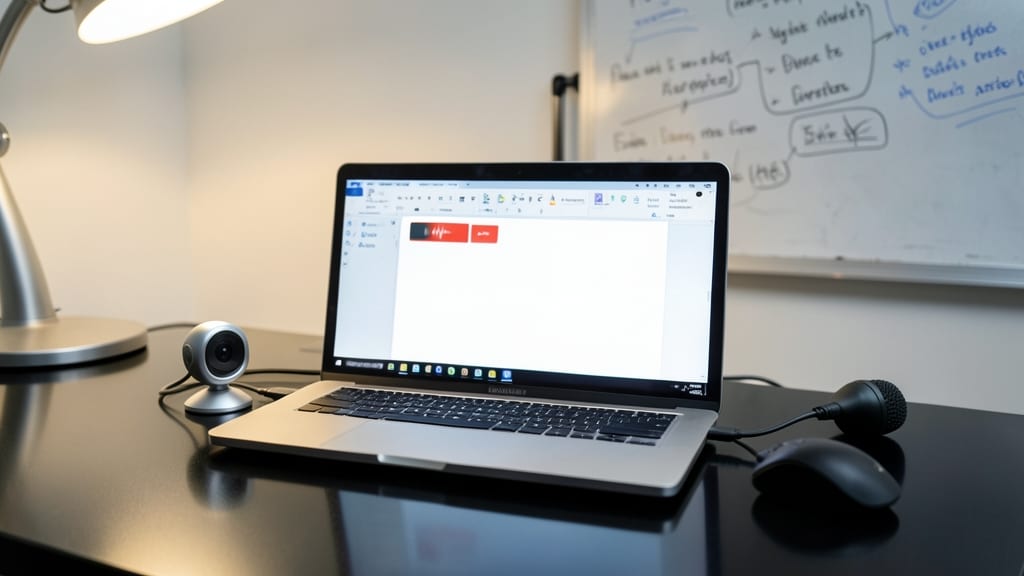
Need to capture a lecture, interview, or brainstorming session without switching apps? OneNote 2013’s audio and video recording tools let you embed clips directly into your notes—no extra software required. Simply click the record button in the ribbon, and your microphone or webcam captures content while you continue typing or sketching.
The recorded clips appear as playable media within your page, complete with timestamps and playback controls. You can also annotate over video frames or add voice memos to highlight key moments. For educators or researchers, this means preserving context-rich notes without juggling separate files.
Perfect for professionals who document meetings, students reviewing lectures, or creatives capturing spontaneous ideas—all while keeping everything in one organized workspace. ⚡
Use Templates for Standardized Note-Taking
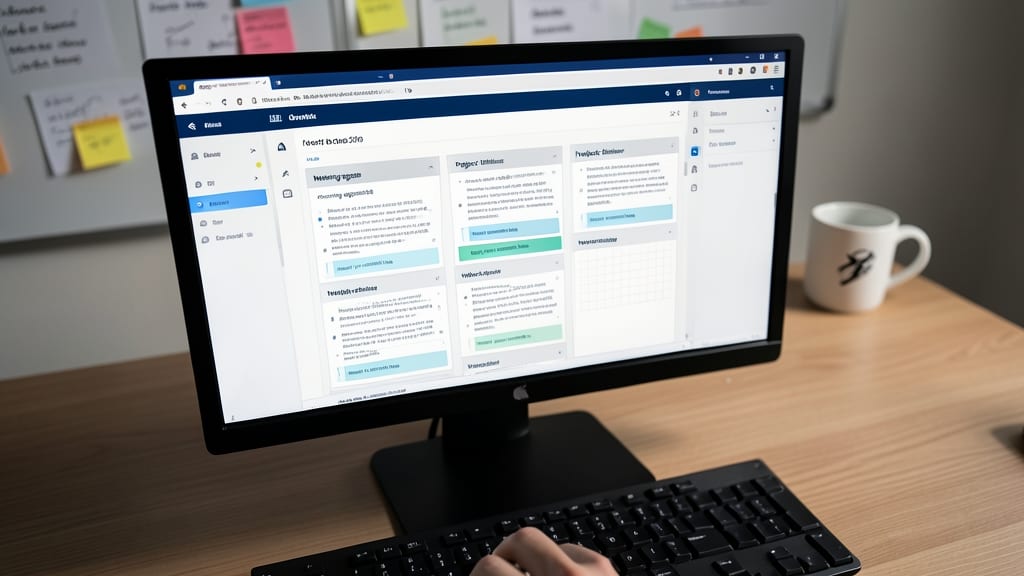
Tired of staring at a blank page every time you need to document a meeting or plan a project? Microsoft OneNote 2013’s pre-built templates cut your setup time in half by providing structured formats for everything from meeting agendas to project timelines. No more reinventing the wheel—just select a template and dive straight into content creation.
Browse the Template Gallery (accessible via the Insert tab) to find options like To-Do Lists, Decision Matrices, or Brainstorming Pages. Each template includes placeholders for key elements—like action items, deadlines, or discussion points—so you can fill in the blanks without formatting headaches. For teams, the Meeting Notes template even includes a built-in agenda section to keep discussions on track.
Perfect for project managers, students, or anyone juggling multiple tasks—these templates ensure consistency across your notes while keeping your workflow efficient. ⚡
Sync Across Devices with OneNote Web App
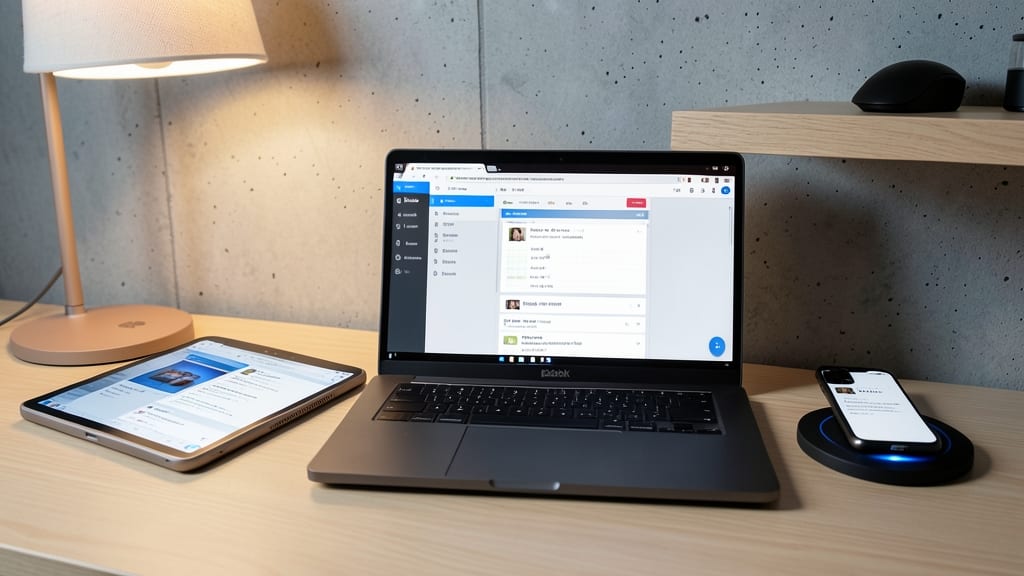
Tired of juggling multiple devices but still want your notes to stay perfectly in sync? The OneNote Web App bridges the gap between your desktop, tablet, and phone—no extra apps or manual transfers required.
Simply log in to onenote.com from any browser to access all your notebooks, sections, and handwritten notes in real-time. The web app supports full editing capabilities, including ink, tables, and embedded media, so your workflow stays seamless whether you're at your desk or on the go. Plus, it syncs instantly with your installed OneNote 2013 version, ensuring you’re always working with the latest updates.
This is a game-changer for remote teams, students, or anyone who relies on multiple devices. Never lose track of an idea again—your notes follow you everywhere. ✨