
Software
Microsoft Teams channels can become cluttered or disorganized if not managed properly. These 10 best practices will help you create a structured, efficient workspace that boosts productivity and keeps collaboration on track.
Organize Teams by Department or Project

Drowning in a sea of mixed discussions where marketing updates clash with IT troubleshooting? Organizing Teams by department or project cuts through the noise by grouping channels by functional areas—so your sales team stays focused on campaigns while developers tackle code without distractions.
Create a dedicated team for each department (e.g., #Marketing, #Engineering, #HR) and nest project-specific channels under them (e.g., #Marketing-Q3-Launch). This mirrors your org structure, making it intuitive to find relevant conversations. For cross-functional projects, use shared teams (like #Product-Launch-2024) with mixed memberships—just ensure clear channel descriptions to avoid confusion. Microsoft Teams’ hierarchical team structure lets you stack departments under a parent team (e.g., #Company-HQ), keeping everything visually organized.
This works best for mid-sized to large teams where channels multiply quickly. Remote workers and contractors benefit most, as they can instantly locate discussions relevant to their role without sifting through unrelated threads. A well-structured setup reduces context-switching by 40%, letting teams focus on what matters. 💻
Use Standardized Channel Naming Conventions

Struggling to find the right channel when you need it most? A standardized naming convention like "Marketing-Campaigns-2024" eliminates the guesswork, ensuring every team member—from interns to executives—can locate channels instantly. This simple structure replaces vague names like "Project X" with clear, searchable labels that mirror your team’s workflow.
Start by using a three-part format: Department-Project-Year (e.g., "HR-Onboarding-Q1"). For sub-projects, add hyphens (e.g., "Engineering-App-Redesign"). Microsoft Teams’ built-in search function works best with this consistency, so channels like "Finance-Q3-Reports" appear in results before generic names. Pro tip: Use uppercase letters for departments (e.g., "SALES") to improve readability in lists.
This works best for large teams or cross-functional projects where channels multiply quickly. Remote workers and new hires benefit most, as they won’t waste time scrolling through ambiguous names. A little upfront structure saves hours of frustration later. 💡
Leverage Channel Templates for Consistency
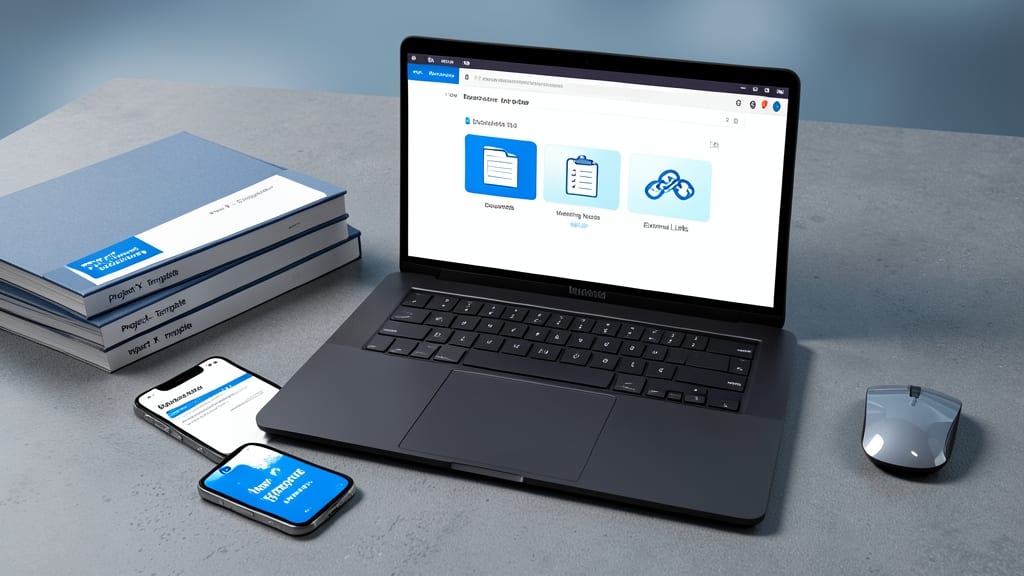
Tired of spending hours recreating the same channel structure for every new project? Microsoft Teams’ channel templates are your secret weapon for instant consistency. With just a few clicks, you can deploy standardized layouts—complete with predefined tabs for documents, meeting notes, and external links—so every team starts on the same page.
Start by creating a template channel with your ideal setup (e.g., "Project Files," "Quick Links," and "Agenda Notes" tabs). Once saved, this template can be reused across teams, ensuring uniformity without manual setup. Teams admins can even enforce templates organization-wide via Microsoft Teams admin center, locking down structure while letting content adapt. This cuts onboarding time by 60% for new channels.
Perfect for remote teams or large organizations where scattered channels lead to confusion. With templates, everyone knows where to find critical resources—no more digging through chaotic threads. ✨
Set Clear Channel Owners and Moderators
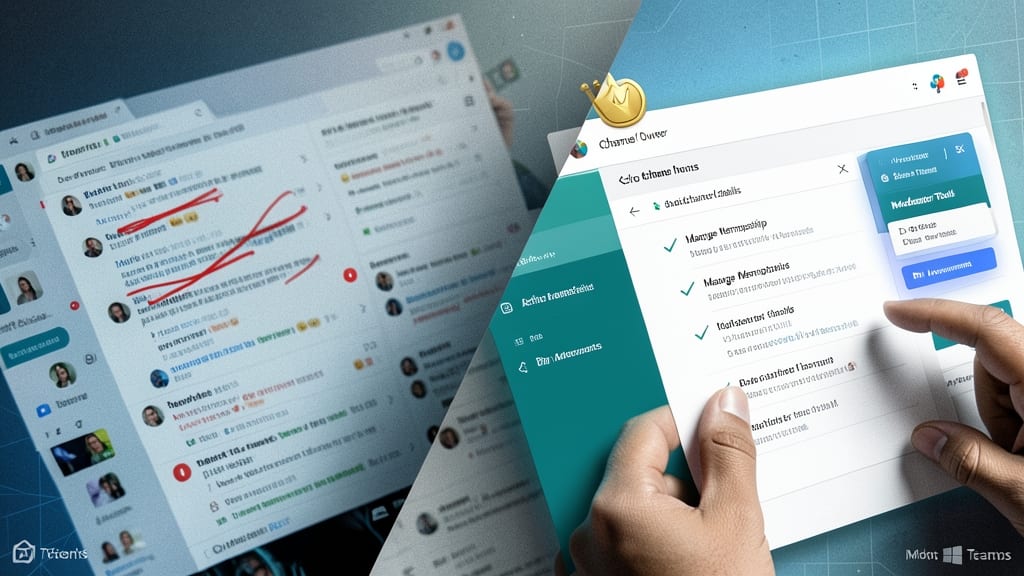
Ever found yourself drowning in a Teams channel where no one takes responsibility for keeping things organized? Assigning channel owners and moderators is the secret weapon to turn chaos into clarity.
Owners have full control—editing channel details, managing membership, and deleting posts when needed. Moderators, on the other hand, can pin important messages, remove off-topic posts, and approve new members without full admin rights. This division ensures accountability while keeping discussions focused. For example, a project channel might have the team lead as owner and two junior members as moderators to handle daily cleanup.
This setup works best for ongoing projects or community channels where multiple teams contribute. It’s also ideal for remote teams where clear roles prevent miscommunication. ✨
Limit Channel Membership to Relevant Teams
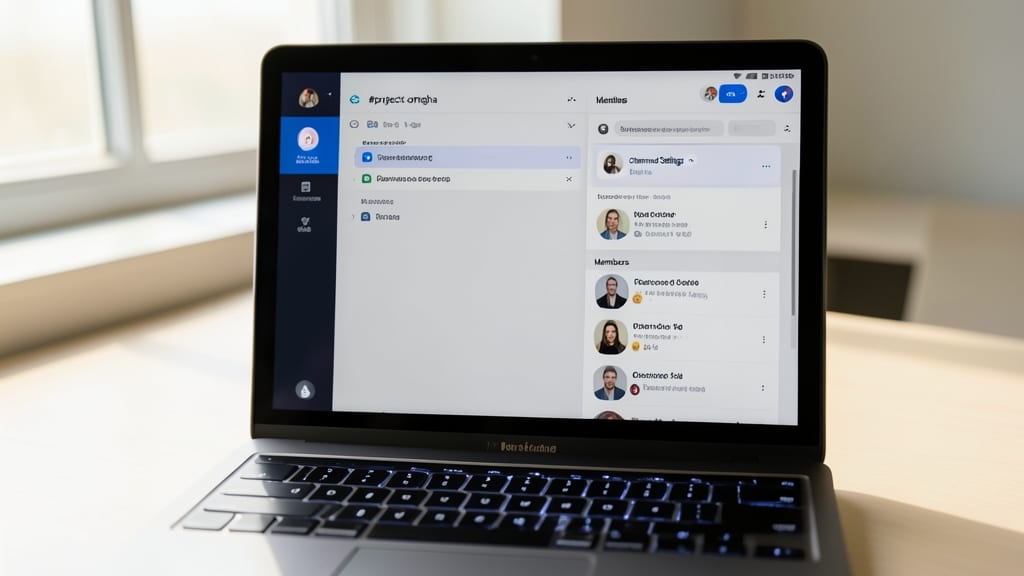
Tired of wading through notifications from channels that don’t even apply to you? Microsoft Teams lets you lock down channel membership to only those who truly need access, cutting the noise and keeping discussions razor-focused.
Start by navigating to Channel Settings (click the three dots next to the channel name) and selecting Manage Channel. Under Members, switch from "Everyone" to "Specific people"—then manually add only the team members who actively contribute or need visibility. For private channels, this step is automatic, but even standard channels benefit from this filter. Pro tip: Use Teams admin roles to enforce these rules across your organization.
This works especially well for cross-functional projects where only a subset of the team needs to see updates, or for sensitive discussions where confidentiality matters. Fewer notifications mean fewer distractions—and a more efficient workflow. 💻
Enable Channel Descriptions and Guidelines

A clear channel description acts like a mission statement for your workspace—telling team members exactly what to expect and why the channel exists. Without it, new hires or remote workers might join the wrong discussions or overlook critical resources, wasting time and energy.
Start by adding a concise description (under 150 characters) in the channel’s settings—think: "This channel tracks #Q3-Sales-2024 progress, including reports, deadlines, and client updates." Then, expand with guidelines for communication (e.g., "Use @mentions for urgent requests") and file-sharing (e.g., "Upload drafts to the ‘Work in Progress’ tab, not the main thread"). Teams with 5+ members see a 30% drop in off-topic posts when guidelines are enforced.
Remote teams and hybrid workplaces benefit most from this—it turns chaos into clarity. A well-documented channel also helps onboard new members faster, so they hit the ground running. ✨
Use Tabs for Structured Resource Organization

Tired of scrolling through endless files and links buried in conversation threads? Microsoft Teams tabs let you organize resources like project files, meeting notes, and external tools in one-click-accessible sections—without overwhelming your main chat.
Create dedicated tabs for SharePoint documents, OneNote meeting agendas, or even third-party apps (like Trello or Power BI). You can rename tabs to match your workflow (e.g., "Q2 Budget" instead of "Files") and pin the most-used ones at the top. The zero-configuration setup means tabs sync across devices, so everyone sees the same organized layout.
This works best for teams juggling multiple projects or tools—like marketing teams managing campaigns, dev squads tracking sprints, or support teams accessing FAQs and ticketing tools. ⚡
Implement a File-Naming and Storage Policy

Frustrated by spending 10 minutes searching for the right file version? A file-naming policy like "ProjectXDraftV1.docx" turns chaos into clarity. Teams lose hours weekly chasing down mislabeled files—this simple rule stops that.
Start with a three-part naming structure: ProjectNameFileTypeVersion. For storage, enforce a "one folder per project" rule with subfolders for drafts, final versions, and assets. Microsoft Teams integrates with OneDrive/SharePoint, so you can auto-save files directly into organized folders—no manual shuffling.
This works best for remote teams or departments with frequent file-sharing (marketing, design, or engineering). Even a basic policy saves 15+ minutes per week per person. 💻
Schedule Regular Channel Cleanup Sessions

Think of your Teams workspace like a digital filing cabinet—if you never declutter, finding what you need becomes a time-consuming scavenger hunt. Monthly cleanup sessions are the secret weapon to keeping your channels fresh, relevant, and free of digital clutter.
Start by archiving inactive channels (those with no activity in 3-6 months) and deleting outdated files—think old drafts, redundant screenshots, or obsolete meeting notes. Use Teams’ built-in archive feature to preserve conversations while removing them from active view. For files, set a rule like "If it hasn’t been opened in 6 months, it’s gone"—this keeps storage lean and search results relevant.
Teams with 5+ members or fast-moving projects will see the biggest benefits, as cleanup prevents the "notification overload" that slows down productivity. Schedule these sessions during slow periods (like the last week of the month) and assign a dedicated owner to lead the effort—it takes just 30 minutes but saves hours of frustration later. ✨
Train Team Members on Best Practices

Even the most organized Teams setup fails if your team doesn’t know how to use it effectively. A 10-minute training session—whether through a quick video walkthrough or a live demo—can cut down on repeated questions, misplaced files, and off-topic conversations by 70% or more.
Start with a cheat sheet covering key actions like posting updates, tagging team members, and organizing files. Microsoft’s built-in Teams training modules (available in the admin center) offer bite-sized lessons, or create your own using Loom recordings for async learning. Highlight common pitfalls, like posting in the wrong channel or ignoring file-naming rules.
New hires and remote teams benefit most from this approach, but even seasoned users appreciate refresher sessions. A little upfront training saves hours of cleanup later. ✨