
Tip & Trick
Remote work offers flexibility but exposes your data to new risks. These 10 security best practices will help you create a fortified digital workspace in minutes—without sacrificing productivity or convenience.
Enable Multi-Factor Authentication Everywhere
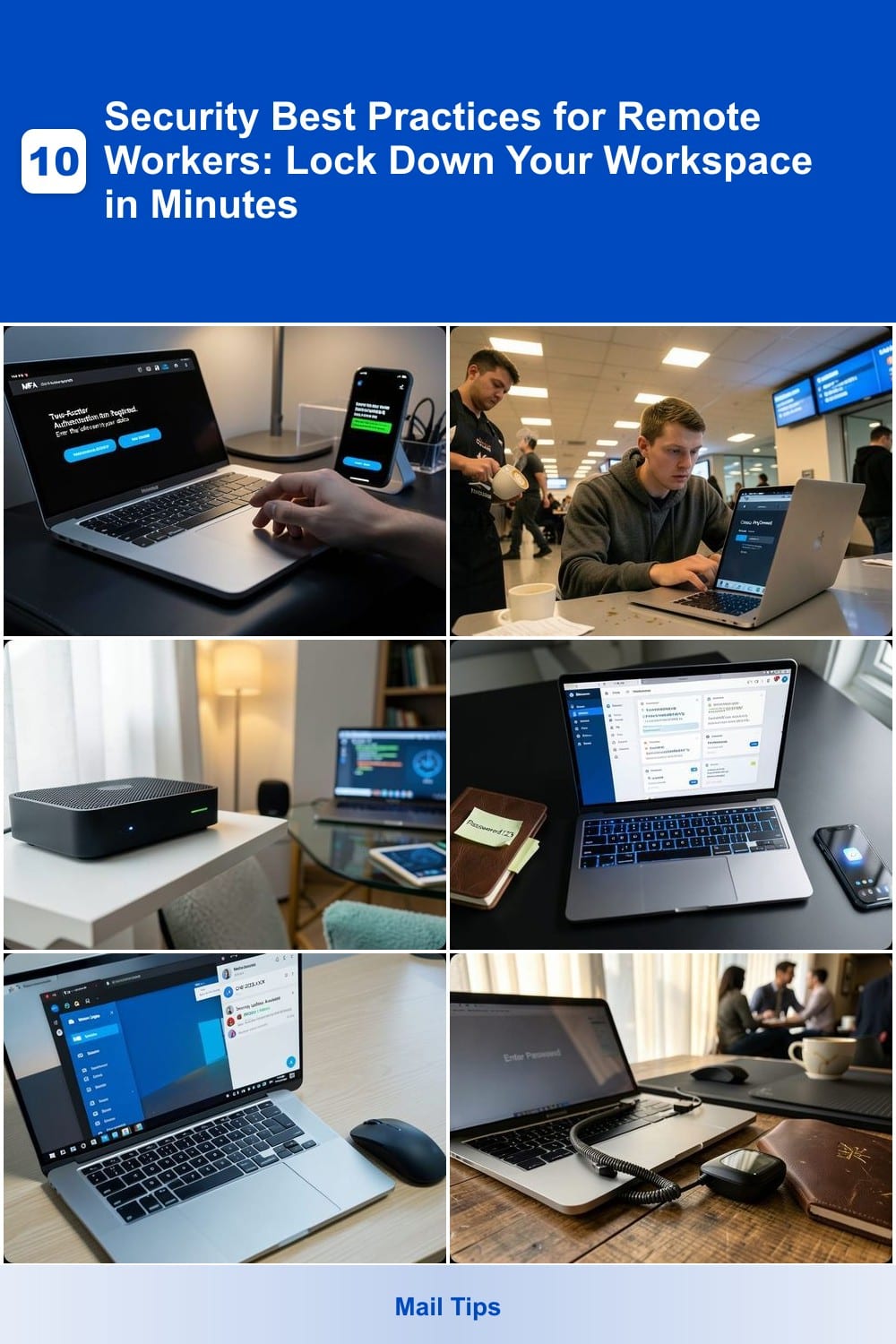
If you’ve ever worried about a hacker gaining access to your work accounts, multi-factor authentication (MFA) is your first line of defense—and it’s easier to set up than you think. With just a few taps, you can add an extra layer of security to emails, cloud storage, and VPNs, making unauthorized access nearly impossible.
Most platforms now support SMS codes, authenticator apps (like Google Authenticator or Authy), or hardware keys for seamless verification. Services like Microsoft 365, Google Workspace, and Dropbox offer one-click MFA setup, while third-party tools like Duo Security provide enterprise-grade protection. The best part? It takes less than five minutes to enable across all critical accounts.
This is the #1 security upgrade for remote workers—whether you’re handling client data or just want to keep your personal files safe. Start with your most sensitive accounts first! ✨
Use a Dedicated Work VPN
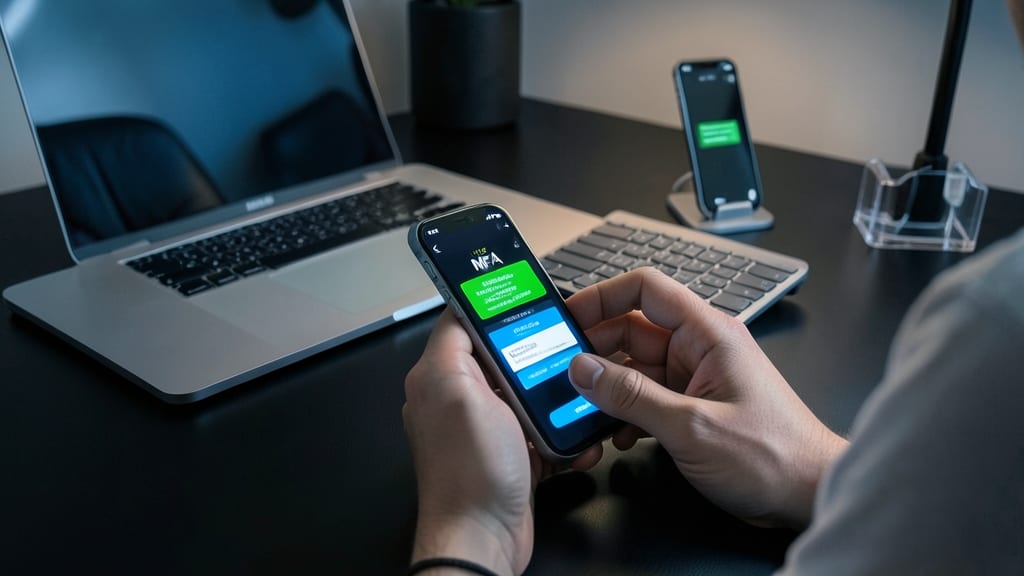
Public Wi-Fi at coffee shops or airports is convenient—but also a hacker’s playground. A dedicated work VPN creates an encrypted tunnel for all your traffic, shielding sensitive work emails, files, and logins from prying eyes, even on unsecured networks.
Look for enterprise-grade VPNs like Cisco AnyConnect, Perimeter 81, or NordVPN Teams, which offer zero-trust architecture and granular access controls. These tools encrypt not just your browsing but also RDP sessions and file transfers, ensuring compliance with corporate security policies. Many integrate seamlessly with SSO providers like Okta or Azure AD for hassle-free logins.
This is non-negotiable for anyone accessing company resources remotely—whether you’re sipping coffee at a café or working from a shared family device. ⚡
Secure Your Home Network
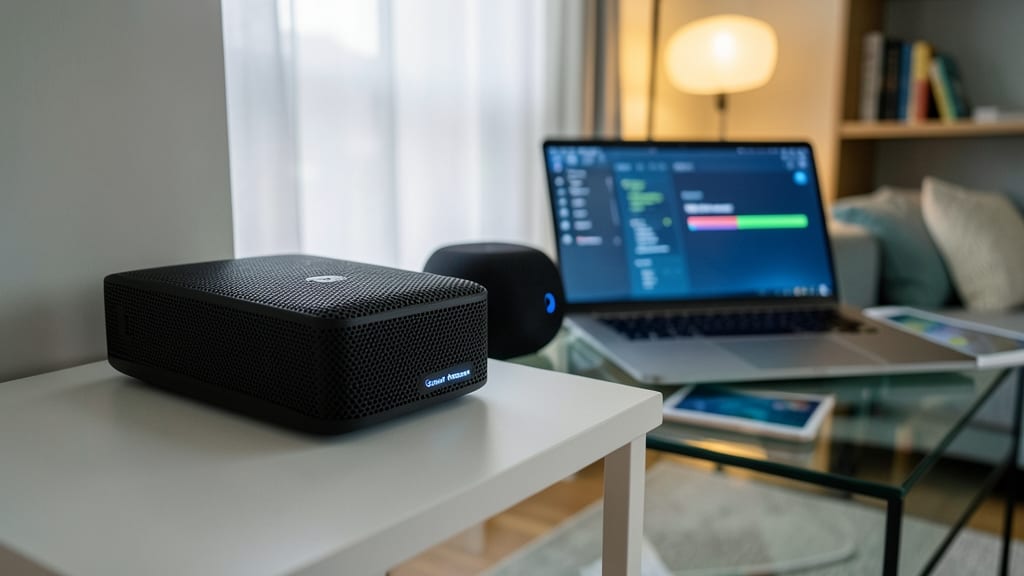
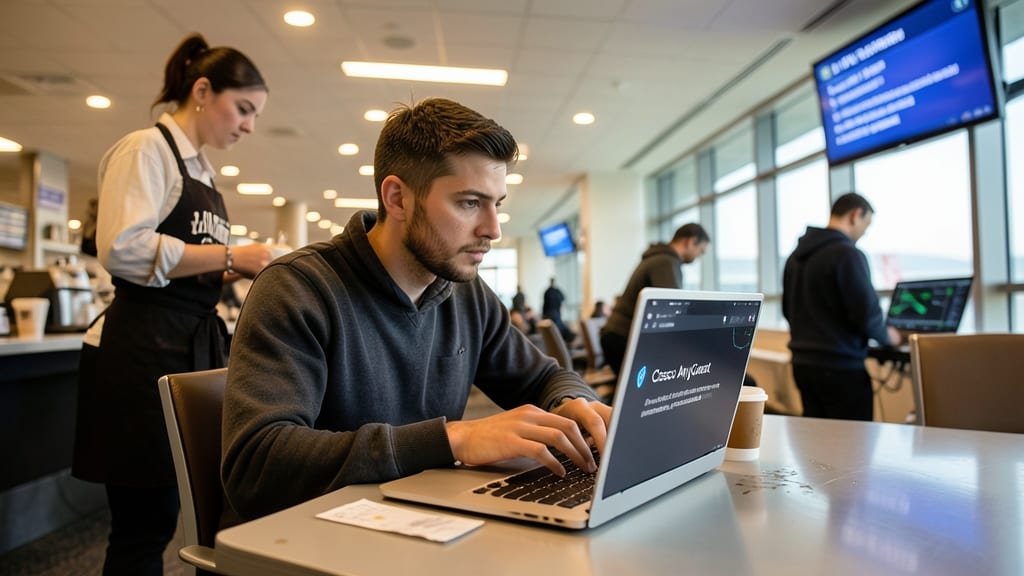
Your home Wi-Fi isn’t just a convenience—it’s the gateway to your work files. With kids, roommates, or smart devices constantly connecting, you need a way to segment work traffic from personal browsing without sacrificing speed or usability.
Most routers support guest networks, but the real game-changer is VLAN segmentation (available on models like the Netgear Nighthawk AX12). This creates isolated networks where your work laptop connects to a dedicated VLAN, blocking unauthorized devices from even seeing your work files. Pair this with a strong WPA3 password and MAC address filtering for extra protection—all configurable in under 10 minutes via the router’s admin panel.
This setup is perfect for families, remote workers with shared living spaces, or anyone who’s ever wondered why their kid’s tablet keeps "accidentally" downloading malware. 💻
Password Manager for All Accounts
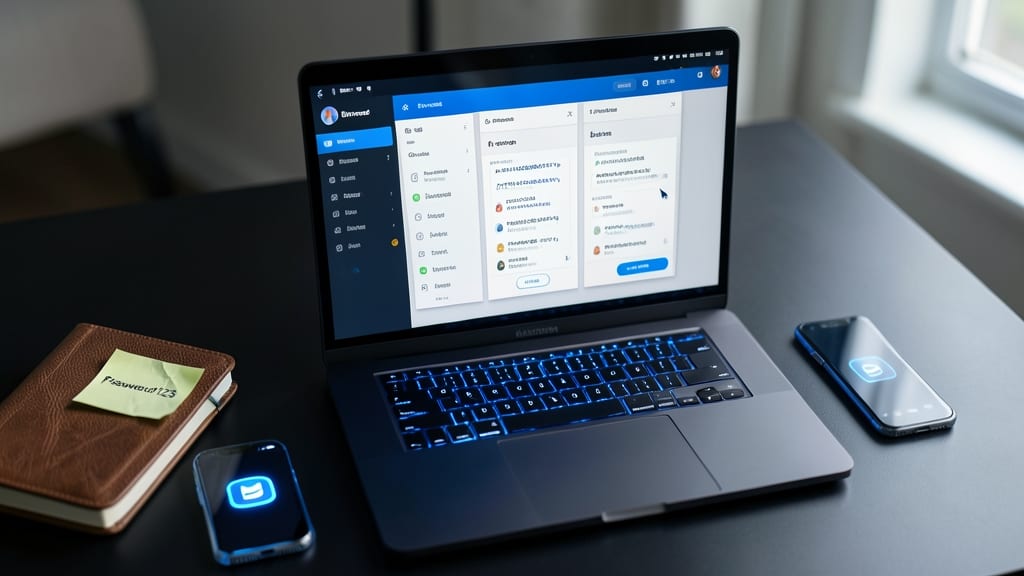
Tired of remembering (or writing down) endless passwords? A password manager like Bitwarden or 1Password generates, stores, and auto-fills complex passwords for every account—so you never reuse weak credentials again.
These tools create unique, 20+ character passwords for each site, sync across devices with end-to-end encryption, and even detect phishing attempts in real time. The best part? Most offer free plans with unlimited password storage, making them accessible for everyone.
Perfect for remote workers juggling personal and work accounts—no more sticky notes or browser-saved passwords. ✨
Regular Software Updates
Hackers exploit known vulnerabilities within minutes of discovery—so why wait for a manual update reminder? Enabling automatic updates for your operating system and productivity apps closes security gaps before they become threats, often with zero effort from you.
Modern systems like Windows 10/11 and macOS Ventura now default to automatic critical updates, but you should verify this in Settings > Windows Update or System Preferences > Software Update. For apps like Chrome, Microsoft Office, or Slack, enable "auto-update" in their respective settings—most include background patching that won’t disrupt your workflow. Even third-party tools like Zoom or Adobe Acrobat now offer one-click update toggles in their system tray.
This is the lowest-effort, highest-impact security habit for remote workers—especially those juggling multiple devices. Set it once, and your system stays fortified against the latest exploits. ⚡
Physical Device Protection
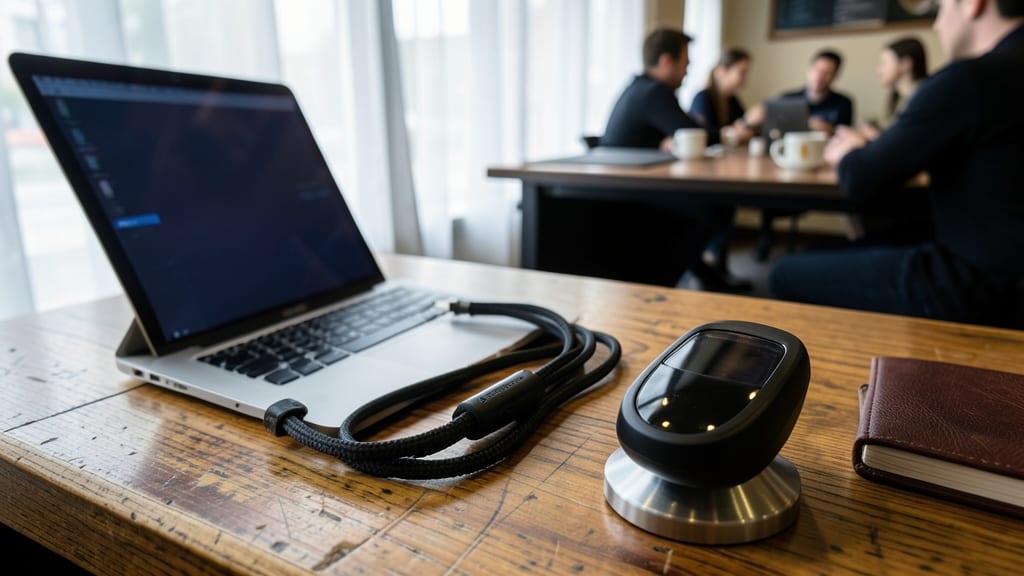
Shared workspaces, coffee shops, or even your own home office can become risky when devices are left unattended. A cable lock or fingerprint scanner adds a critical physical barrier against theft or unauthorized access—something no digital security measure can replace.
Start with a Kensington Security Cable (under $20) to anchor laptops to desks, or upgrade to Windows Hello for biometric login. For tablets, Apple’s Touch ID or Samsung’s Knox provides quick, secure access. Even a simple lockable drawer for workstations in shared offices deters opportunistic theft while you step away. These tools work silently in the background, requiring zero effort once set up.
Perfect for freelancers in co-working spaces, IT admins managing office equipment, or remote workers who travel frequently. A few seconds of setup now can save hours of headaches later. 💪
Secure Cloud File Sharing
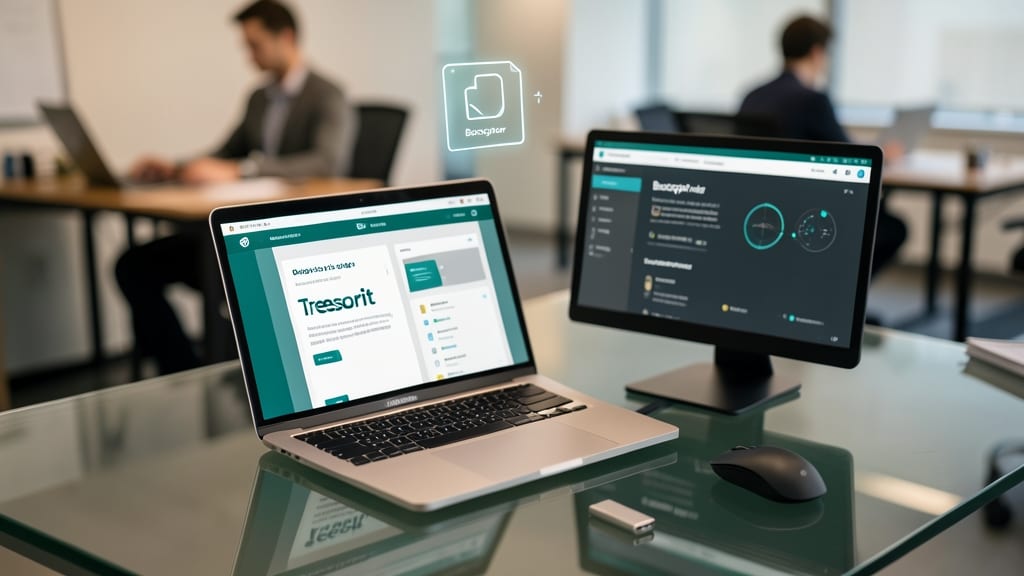
Sharing sensitive files with clients or colleagues doesn’t have to mean risking data leaks. Tools like Tresorit or Boxcryptor add end-to-end encryption to cloud storage, ensuring only authorized recipients can access your files—no matter where they land.
These solutions integrate seamlessly with Google Drive, Dropbox, and OneDrive, while offering zero-knowledge architecture (meaning even the provider can’t decrypt your files). Features like password-protected links and expiration dates add extra layers of control, perfect for legal documents or financial reports.
Ideal for freelancers, consultants, or anyone handling confidential client data, these tools turn cloud sharing into a secure, audit-friendly process. 🔧
Browser Security Hardening
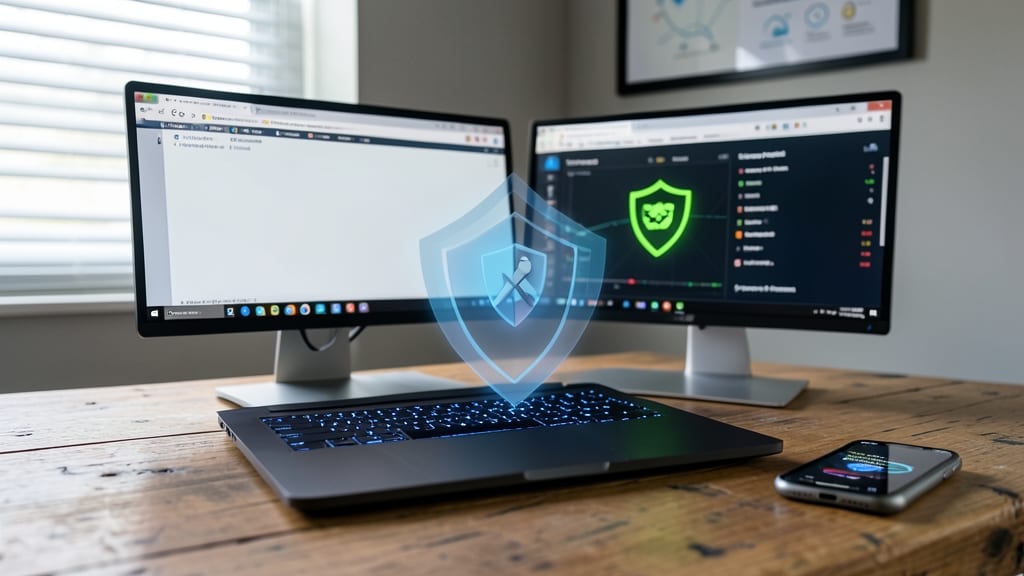
Your browser is the #1 attack vector for remote workers—yet most people browse with zero hardening against trackers, ads, or malicious scripts. With just a few extensions, you can transform your browser into a fortified workspace that blocks corporate data leaks while improving speed and privacy.
Start with uBlock Origin (blocks ads/trackers) and uMatrix (fine-grained site permissions) for a 90% reduction in tracking scripts. Add HTTPS Everywhere to enforce encrypted connections, and NoScript to block untrusted JavaScript. For remote workers, Firefox Multi-Account Containers keeps work and personal sessions isolated—critical when accessing company resources from personal devices.
This setup is ideal for freelancers, remote employees, or anyone sharing devices between work and personal use. The best part? It’s free, lightweight, and works across Chrome, Firefox, or Brave. ✨
Endpoint Detection and Response
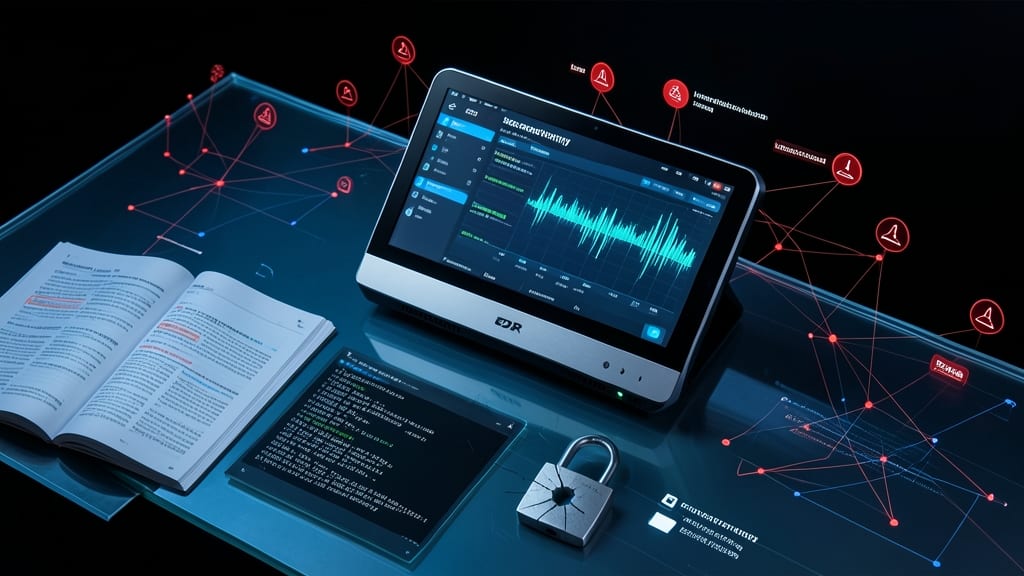
If your device suddenly behaves suspiciously—unusual network traffic, unauthorized logins, or encrypted files—you need Endpoint Detection and Response (EDR). Unlike traditional antivirus, EDR provides real-time behavioral analysis and automated threat containment, making it a game-changer for advanced users or those handling sensitive corporate data.
Solutions like CrowdStrike Falcon, Microsoft Defender for Endpoint, or SentinelOne monitor 100+ threat indicators per second, including ransomware, malware, and insider threats. They offer automated isolation of infected devices, detailed forensic reports, and integration with SIEM tools for enterprise-grade visibility. For remote workers, EDR acts as an invisible shield against evolving cyber threats. 💻
Regular Security Audits
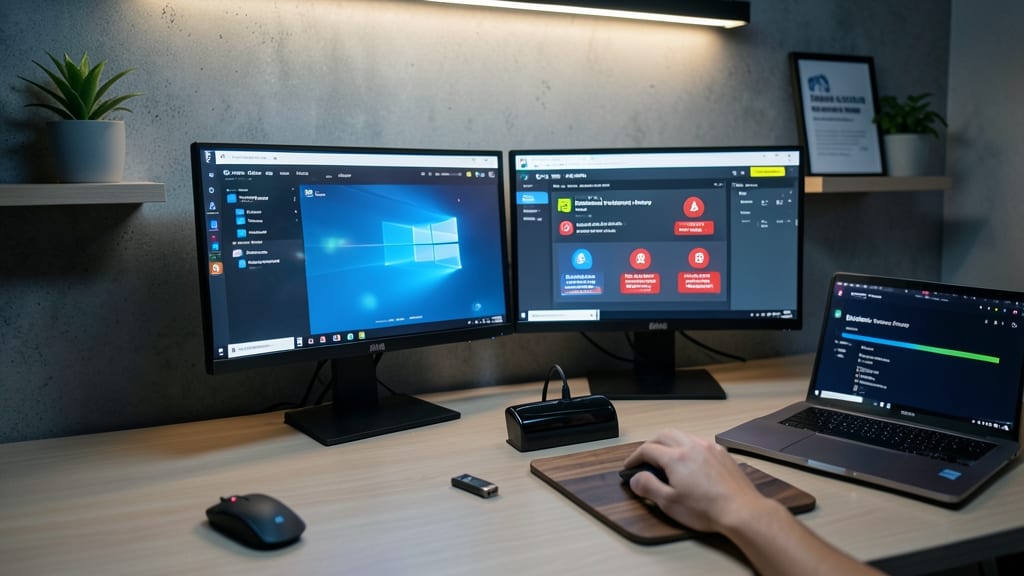
Think you’ve locked down your remote work setup? Security audits uncover hidden vulnerabilities—like outdated plugins or misconfigured permissions—that even proactive users might miss. Built-in tools like Windows Defender Security Center or free scanners from Bitdefender and Norton automate this process with clear reports.
These tools scan for weak passwords, unpatched software, and suspicious network activity—often flagging issues before they become breaches. For example, Defender’s offline scan runs without slowing your system, while third-party options like Malwarebytes offer deeper threat detection. Most take less than 15 minutes to complete.
Perfect for freelancers, contractors, or anyone handling sensitive data—whether it’s client files or company secrets. Run audits monthly, or after major updates, to stay ahead of evolving threats. ✨