
Coding
Excel’s math and trigonometry functions transform raw data into actionable insights. Whether you're analyzing engineering projects, financial models, or scientific datasets, these 10 essential functions will streamline your calculations and boost productivity in seconds.
SUM Function for Basic Calculations

If you’ve ever spent hours manually adding numbers in Excel—whether tallying monthly expenses, tracking inventory, or summarizing sales—you’re about to discover your new shortcut. The SUM function is Excel’s simplest yet most powerful tool, designed to add values across a range of cells in a single click, eliminating errors and saving time.
Type =SUM(range) to instantly calculate totals, where "range" can be a single cell (e.g., =SUM(A1)) or a range like =SUM(B2:B100). It even ignores empty cells and text, ensuring accurate results. For dynamic data, use =SUMIF or =SUMIFS to add values based on conditions—like summing only sales above $1,000. This function works in every version of Excel, from basic spreadsheets to complex financial models.
Perfect for bookkeepers, inventory managers, or anyone handling budgets, the SUM function is the first step toward mastering Excel’s math capabilities—no prior experience needed. ⚡
AVERAGE Function for Statistical Analysis

Struggling to interpret survey results or track manufacturing quality metrics? The AVERAGE function in Excel cuts through the noise by calculating the mean of any dataset—whether you're analyzing performance metrics, customer satisfaction scores, or production tolerances. Unlike manual averages, it ignores empty cells and text, delivering accurate results in seconds.
Simply type =AVERAGE(range), and Excel returns the arithmetic mean. For example, =AVERAGE(B2:B100) instantly computes the average of 100 test scores. It even handles logical values (TRUE/FALSE) by treating them as 1/0, making it versatile for binary data like pass/fail rates. Combine it with IF functions to filter outliers before averaging, or use AVERAGEIF for conditional calculations.
Perfect for quality control analysts, market researchers, or educators grading assignments—where understanding central tendencies matters more than individual data points. ⚡
SIN and COS for Trigonometric Calculations

Need to calculate forces in a bridge design or simulate sound waves? Excel’s SIN and COS functions unlock precise trigonometric calculations by converting angles into their sine or cosine values—critical for engineers, physicists, and game developers alike.
Use =SIN(angle) or =COS(angle) where the angle must be in radians (convert degrees to radians first with RADIANS()). For example, =SIN(RADIANS(30)) returns 0.5, matching the sine of 30 degrees. These functions handle everything from structural load analysis to 3D object rotations in animations.
Perfect for professionals modeling real-world physics or developers building simulations—where angles define everything from trajectory paths to wave patterns. ⚡
PI Function for Circle and Sphere Calculations
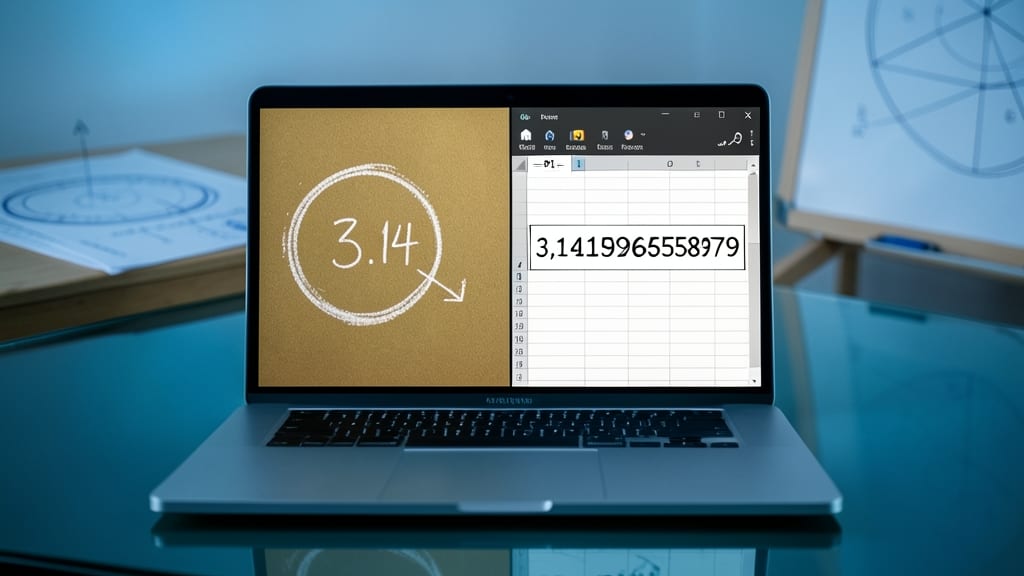
Forget memorizing π—Excel’s PI function gives you the precise value (3.14159265358979) instantly, eliminating rounding errors in your geometric formulas. Whether you’re calculating the area of a circular foundation or the volume of a spherical tank, this function ensures accuracy without manual input.
Combine it with radius values in formulas like =PI()r^2 for area or =4/3PI()*r^3 for volume. It’s a game-changer for architects, engineers, and 3D modelers who rely on exact measurements. No more guessing—just plug in the function and let Excel handle the rest.
Perfect for professionals who need repeatable precision in blueprints, manufacturing specs, or design software. ⚡
ROUND Function for Clean Data Presentation

Tired of manually adjusting decimals in financial reports or scientific datasets? The ROUND function in Excel automates precision control with a single formula, saving you hours of tedious formatting.
Use it with two arguments: the number to round and the number of decimal places. For example, =ROUND(3.14159, 2) returns 3.14, while =ROUND(2.71828, 0) rounds to 3. It even handles negative decimals—ideal for currency values or engineering specs where consistency matters.
Perfect for accountants, data analysts, or anyone presenting numbers professionally. Say goodbye to misaligned decimals and hello to polished, error-free spreadsheets. ✨
POWER Function for Exponential Calculations

Tired of manually calculating compound interest or exponential growth? The POWER function in Excel handles any exponentiation with just two inputs—base and exponent—making it a game-changer for financial modeling, physics, or data science projects.
Simply type =POWER(base, exponent) to raise a number to any power, from 2³ (8) to e⁴.⁵ (90.02). It’s perfect for calculating compound interest (e.g., =POWER(1.05, 10) for 5% annual growth over 10 years) or solving physics equations like kinetic energy (½mv²). The function even handles negative exponents (e.g., =POWER(10, -2) = 0.01).
Finance analysts, engineers, and scientists will love this for its precision and speed—no more fumbling with calculators for complex formulas. ⚡
DEGREES and RADIANS for Unit Conversion
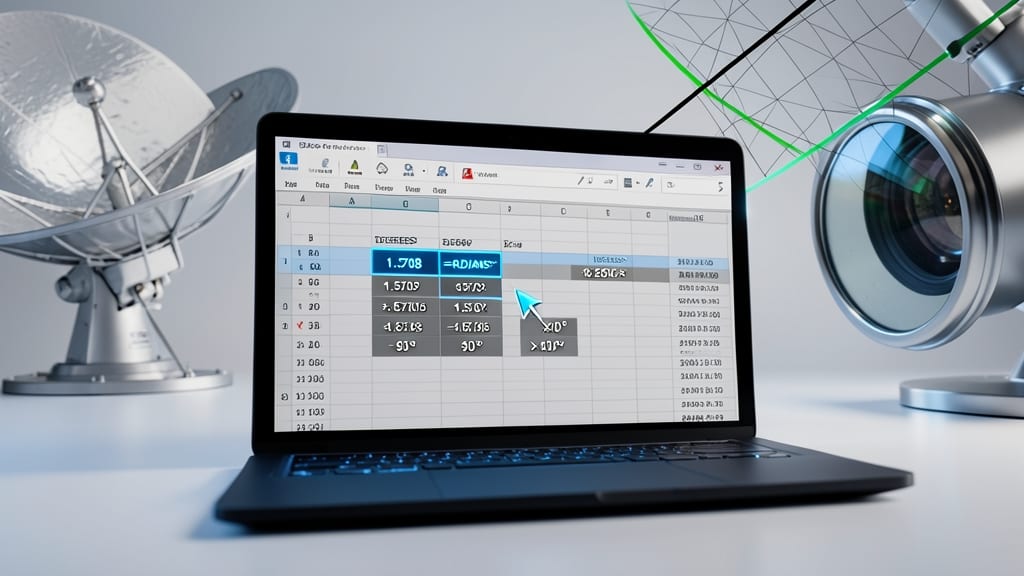
Stuck juggling angles between degrees and radians? Excel’s DEGREES and RADIANS functions bridge that gap instantly. These twins handle unit conversions with zero fuss—critical for fields where precision matters, like GPS navigation or telescope alignment.
Use DEGREES to convert radians (e.g., =DEGREES(PI()/2) returns 90) or RADIANS to flip degrees back (e.g., =RADIANS(180) gives π). Both work with any numeric input, and Excel’s built-in radian mode ensures trig functions like SIN or COS stay consistent across your calculations.
Perfect for students, engineers, or hobbyists working with angular measurements—no more manual conversions or calculator switching. ✨
FACT Function for Permutations and Combinations

Need to calculate permutations, factorials, or probability distributions? Excel’s FACT function delivers instant results with just one input. Unlike manual multiplication, it handles numbers up to 170! (170 factorial) without overflow errors, making it perfect for combinatorics or algorithm design.
Simply type =FACT(number), and Excel returns the factorial value—critical for scenarios like calculating combinations (nCr) or permutations (nPr) in risk analysis. For example, =FACT(5) instantly returns 120, saving hours of manual work. The function also integrates seamlessly with other Excel tools for complex statistical modeling.
Data scientists, game developers, and educators will find this function indispensable for probability simulations or teaching combinatorics. ⚡
LOG and LOG10 for Logarithmic Scales

When dealing with datasets that span orders of magnitude—like sound intensity (decibels), pH levels, or population growth—LOG and LOG10 turn overwhelming numbers into manageable values. These functions compress exponential scales into linear ones, making trends visible and calculations precise.
Use LOG for natural logarithms (base e) or LOG10 for base-10 logs, both with syntax like =LOG(number, [base]). For example, =LOG10(1000) returns 3, revealing that 1,000 is 10³. In audio engineering, =LOG10(pressure_ratio) converts sound pressure into decibels instantly. Excel even handles negative numbers (returning negative logs) and includes optional bases for flexibility.
Perfect for scientists, economists, or audio technicians, these functions unlock clarity in data where linear scales fail. 💡
ATAN2 Function for Advanced Trigonometry

Need to calculate an angle from x/y coordinates? The ATAN2 function solves this with precision, handling all quadrants correctly—unlike the basic ATAN function that fails for negative values. It’s the secret weapon for developers, game designers, and engineers who need accurate angle calculations for rotations, trajectories, or vector math.
Simply input ATAN2(y, x) to return the angle in radians between the positive x-axis and the point (x, y). For example, ATAN2(1, 1) returns π/4 (45 degrees), while ATAN2(-1, -1) correctly returns -3π/4 (-135 degrees). Pair it with DEGREES() to convert to degrees for readability. This function is quadrant-aware, eliminating guesswork in complex coordinate systems.
Perfect for game physics engines, robotics pathfinding, or CAD software where direction matters. Whether you’re aligning sprites in a 2D game or calculating drone flight paths, ATAN2 delivers reliable results without manual quadrant checks. ✨