
Tip & Trick
Struggling to unlock SharePoint’s full potential? These eight beginner-friendly tips will help you navigate Microsoft’s powerful collaboration tool with confidence, from essential setup shortcuts to hidden productivity hacks that save hours weekly.
Master SharePoint Navigation with Quick Launch
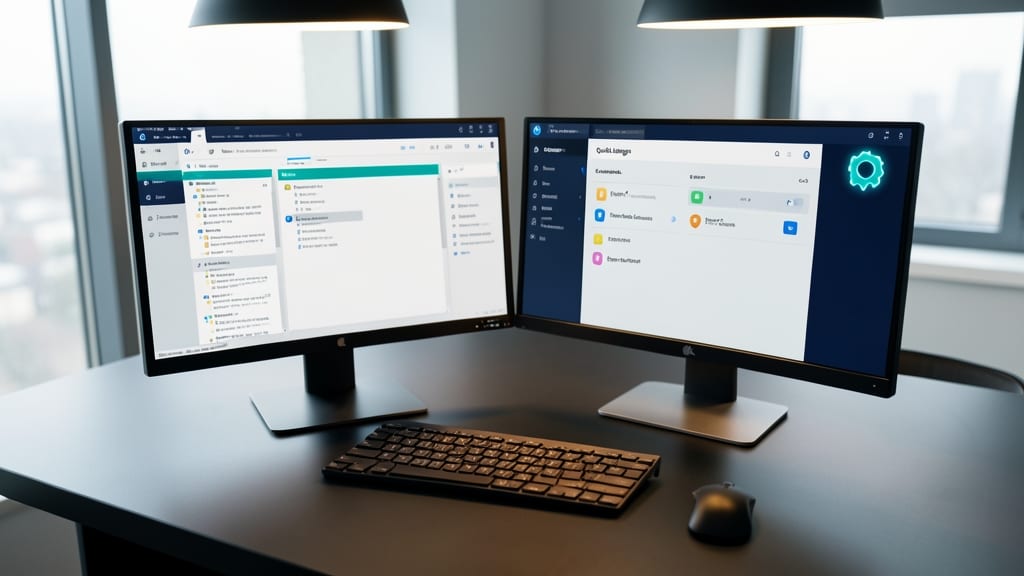
Ever wasted minutes digging through SharePoint menus just to find a project site? The Quick Launch bar is your secret weapon—customize it to pin your most-used sites, libraries, and links for one-click access, cutting navigation time by 60%.
To get started, click the gear icon in the top-right corner of the Quick Launch, then select "Edit Links". Here, you can add, reorder, or remove items like document libraries, team sites, or even external links. Pro tip: Use frequent sites first to streamline your workflow—no more scrolling through endless menus. The bar adapts to your needs, so it’s perfect for teams juggling multiple projects.
This trick is a game-changer for project managers, remote teams, or anyone drowning in SharePoint sites. Spend less time searching and more time collaborating. ✨
Use Modern Document Libraries for Drag-and-Drop Simplicity

Tired of wasting time emailing files back and forth or hunting through folders? SharePoint’s modern document libraries replace outdated workflows with a drag-and-drop interface that feels like working with your desktop—except smarter.
With version control built in, you’ll never lose a draft again, and co-authoring lets multiple people edit the same Word or Excel file simultaneously, with changes updating in real time. The intuitive folder structure also supports metadata tags, so you can filter files by project, date, or author without digging through subfolders.
This is your go-to for solo workers or teams who want zero-config collaboration—no more waiting for file locks or chasing down the latest version. ✨
Leverage SharePoint Search with Advanced Keywords
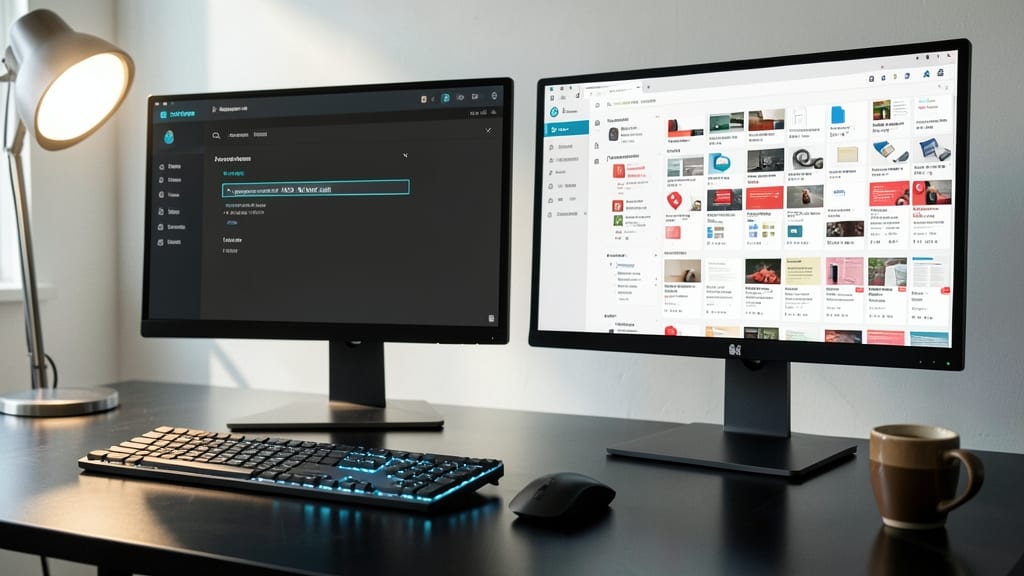
Tired of sifting through endless search results in SharePoint? Boolean operators (AND, OR, NOT) and wildcards (*) can transform your search game—turning vague queries like "project plan" into precise filters like "project AND Q3 NOT draft". This cuts search time from minutes to seconds, even in sprawling libraries.
Type "filetype:pdf AND (marketing OR sales)" to find only PDFs related to marketing or sales, or use "Q2 NOT final" to exclude completed versions. SharePoint’s search also supports proximity search (e.g., "team NEAR project") to find terms within a few words of each other. No plugins or add-ons needed—just type smarter. 💡
Teams drowning in unstructured data—especially marketers, project managers, and HR—will see the biggest time savings. Start with one search trick today, and watch your productivity (and sanity) improve instantly. ✨
Automate Repetitive Tasks with Power Automate

Tired of spending hours manually organizing emails, files, or notifications? Power Automate transforms repetitive tasks into effortless workflows—no coding required. With pre-built templates for SharePoint integration, you can auto-save emails to libraries, sync files between apps, or even trigger approvals with a single click.
The no-code drag-and-drop interface lets you connect triggers (like new emails or file uploads) to actions (such as saving to SharePoint or sending Slack alerts). For example, create a flow that auto-backs up files to OneDrive when they’re updated, or notifies your team when a document is modified—all in minutes. Microsoft’s 200+ connectors (including Outlook, Teams, and Dropbox) ensure seamless integration with tools you already use.
Perfect for admins, project managers, or beginners who want to reclaim hours weekly without diving into complex scripts. Start with a simple workflow today and watch your productivity soar! ⚡
Organize Teams with Custom Site Templates
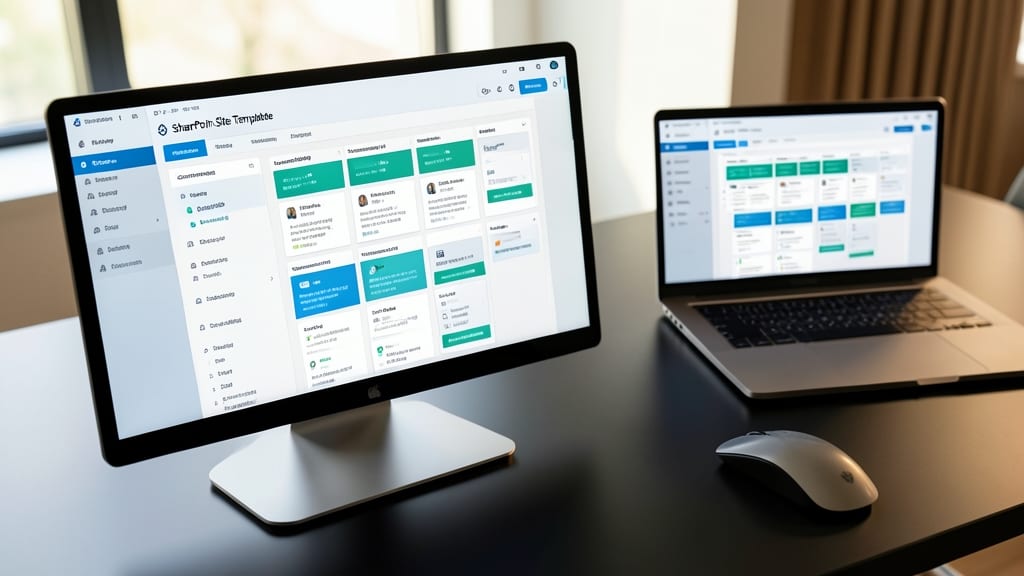
Launching a new team or department shouldn’t mean starting from scratch. SharePoint’s custom site templates let you deploy fully structured hubs, project sites, or intranets in minutes—no IT expertise required. These pre-built frameworks include everything from document libraries to communication tools, tailored for specific use cases like marketing campaigns or HR onboarding.
Choose from templates like Project Site (with Gantt charts and task lists) or Hub Site (for connecting multiple sites under one navigation). Each comes with built-in permissions, branding options, and even suggested workflows. The best part? You can customize them further by adding apps, lists, or Power Automate flows without breaking the template’s core structure.
Ideal for managers leading cross-functional teams, these templates ensure consistency while letting you focus on content—not configuration. 🌟
Sync SharePoint Libraries to Your Desktop

Tired of waiting for files to load or losing work due to spotty internet? Syncing SharePoint libraries to your desktop via OneDrive lets you access files instantly—even when offline. This seamless integration ensures your latest edits sync automatically when you reconnect, eliminating version conflicts and manual uploads.
To get started, navigate to the library in SharePoint, click the Sync button in the top-right corner, and choose a local folder. You’ll gain full desktop access to files with real-time sync, conflict resolution, and offline editing. Perfect for remote workers or those in areas with unreliable connections, this feature turns SharePoint into a portable workspace.
Ideal for freelancers, field teams, or anyone juggling multiple devices, this trick keeps your workflow uninterrupted. No more waiting—just work. ✨
Collaborate in Real-Time with Co-Authoring

Tired of endless email chains and version control chaos? SharePoint’s co-authoring feature lets you and your team edit Word, Excel, or PowerPoint files simultaneously, with changes appearing live in the app—no more "finalv3final.docx" headaches.
Open a file from SharePoint in the desktop or web version of Office, and see others’ cursors move in real time. Conflicts are rare thanks to automatic merge tools, and you’ll get instant notifications when someone joins or leaves. Best of all, it works across Windows, Mac, and mobile—perfect for hybrid teams.
This is a game-changer for marketing teams drafting campaigns, project managers aligning on reports, or beginners frustrated by file-sharing bottlenecks. Just open the file, invite collaborators, and watch productivity soar. ✨
Secure Your Data with SharePoint Permissions
Accidental data leaks can derail projects faster than a missing file—SharePoint’s permission settings let you lock down sensitive documents with precision. Instead of defaulting to "everyone can edit," you can assign view-only access for reports, edit permissions for team drafts, or even approval workflows for contracts, all without IT intervention.
Start by navigating to Library Settings > Permissions to restrict access by individual users or groups. Need extra security? Use unique permissions to override inheritance and create custom roles like "Finance Reviewers." The audit log tracks who accessed files, so you’ll never wonder if that confidential spreadsheet was shared unintentionally. ⚡
This is your secret weapon if you manage client proposals, HR records, or project budgets—where one wrong click could mean trouble. Even beginners can master it in minutes! 🔒