
PowerPoint
Want to make your PowerPoint presentations more dynamic and engaging? These seven transition effects will instantly elevate your slideshows, helping you command attention and deliver content with professional polish. Perfect for business, education, or creative projects.
Fade Slide Transition for Elegant Professionalism

When your presentation demands polish without distraction, the Fade transition delivers a seamless, understated shift that keeps focus squarely on your content. Unlike flashy effects, this classic smoothly dissolves one slide into the next, ensuring no visual clutter competes with your message—ideal for boardrooms or lecture halls where clarity reigns supreme.
Built into PowerPoint as a default option, the Fade transition works effortlessly across all versions, from PowerPoint 2010 to Microsoft 365. Its zero-configuration setup means you can apply it instantly to entire decks with a single click, while the adjustable transition speed (from 0.1s to 10s) lets you control pacing for maximum impact. For data-heavy slides, this effect preserves readability by avoiding abrupt cuts or directional distractions.
Perfect for executives, educators, and researchers, the Fade transition strikes the ideal balance between professionalism and subtlety. Use it to maintain audience engagement during lengthy reports or to emphasize transitions between key sections without overshadowing your core message. ✨
Morph Transition for Modern Visual Impact
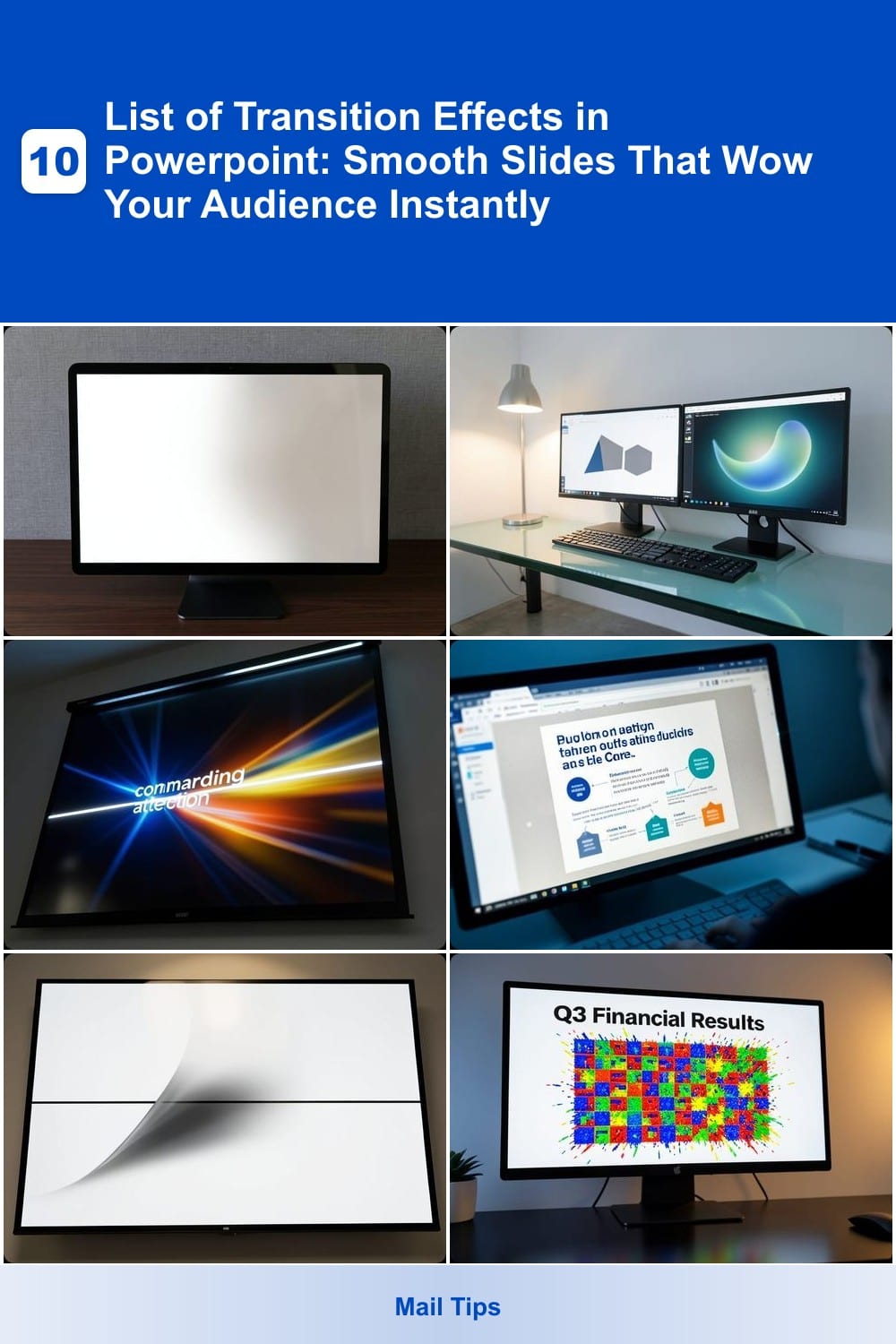
Tired of static slides that feel disconnected? The Morph transition in PowerPoint 365 lets shapes and objects fluidly transform into one another, creating a seamless visual narrative that keeps your audience engaged. Unlike traditional transitions, this effect preserves continuity by morphing elements—think a logo evolving into a graph or a flat icon becoming a 3D model—all without losing context.
This PowerPoint 365 exclusive works best with vector-based shapes (like polygons or icons) and supports custom timing for smooth pacing. The effect is ideal for storytelling presentations where visual progression reinforces your message, such as design portfolios or marketing campaigns. Just ensure your objects share similar outlines for the best results.
Designers, marketers, and educators will love this for its cinematic flow, but it’s overkill for data-heavy slides. Perfect for when you want to wow without overwhelming. ✨
Push Transition for Dynamic Energy

When you need to command attention during a product launch or keynote, the Push Transition delivers a cinematic punch that guides your audience’s focus with purpose. Unlike subtle fades or morphs, this effect creates a directional shift—like a slide sliding forward or backward—adding energy without overwhelming your content.
Available in PowerPoint’s built-in transition library, the Push effect lets you choose from horizontal, vertical, or diagonal directions, paired with speed controls for dramatic pauses or swift momentum. It’s especially effective for highlighting key slides in a sequence, like a product demo or financial forecast, where you want to emphasize progression. Just ensure your text and visuals aren’t obscured by the motion—keep elements centered or anchored for clarity.
Ideal for sales teams, tech presenters, or creative directors, this transition turns passive slides into an active storytelling tool. Use it sparingly—once per section—to maintain impact. ✨
Zoom Transition for Highlighting Key Points
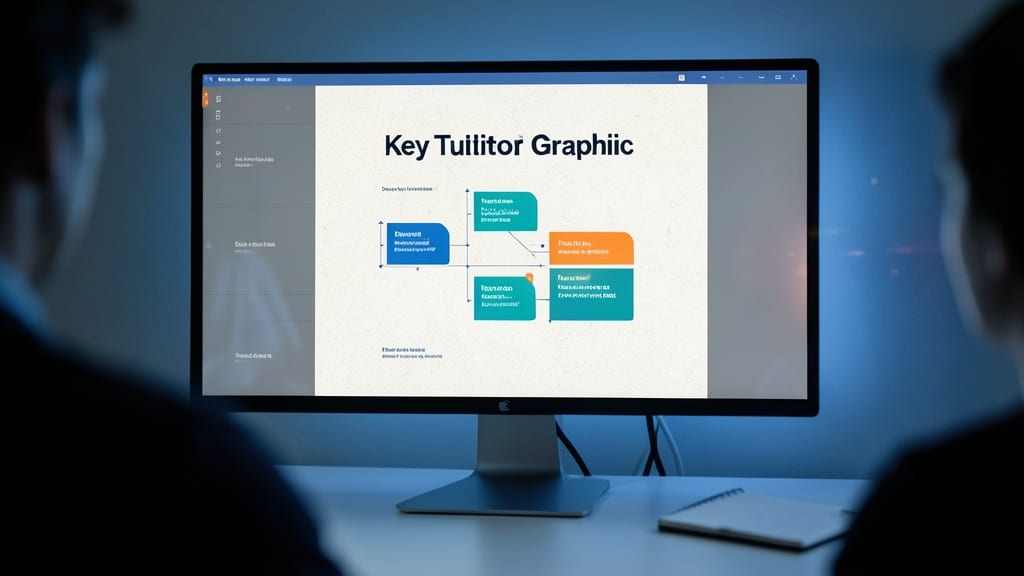
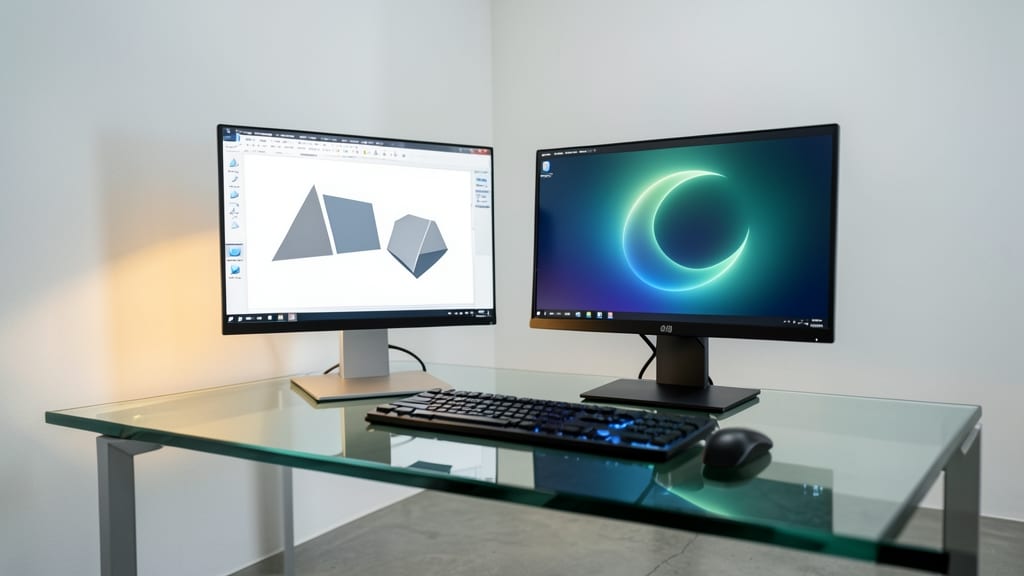
Struggling to keep your audience locked in during a tutorial or training session? The Zoom Transition in PowerPoint is your secret weapon—it magnifies key slides to create a natural focal point, ensuring your message isn’t lost in the shuffle.
This transition works by smoothly zooming in or out on a specific area of your slide, making it perfect for emphasizing large text, diagrams, or logos. You can adjust the zoom speed and direction (inward or outward) to match your presentation’s pace, and it pairs well with bold colors or high-contrast designs for extra impact.
Trainers, educators, and presenters who need to highlight critical concepts will find this transition invaluable. It’s especially effective when paired with a clean layout—think minimalist backgrounds and centered content—to maximize the zoom effect’s clarity. ✨
Wipe Transition for Clean Segmented Flow
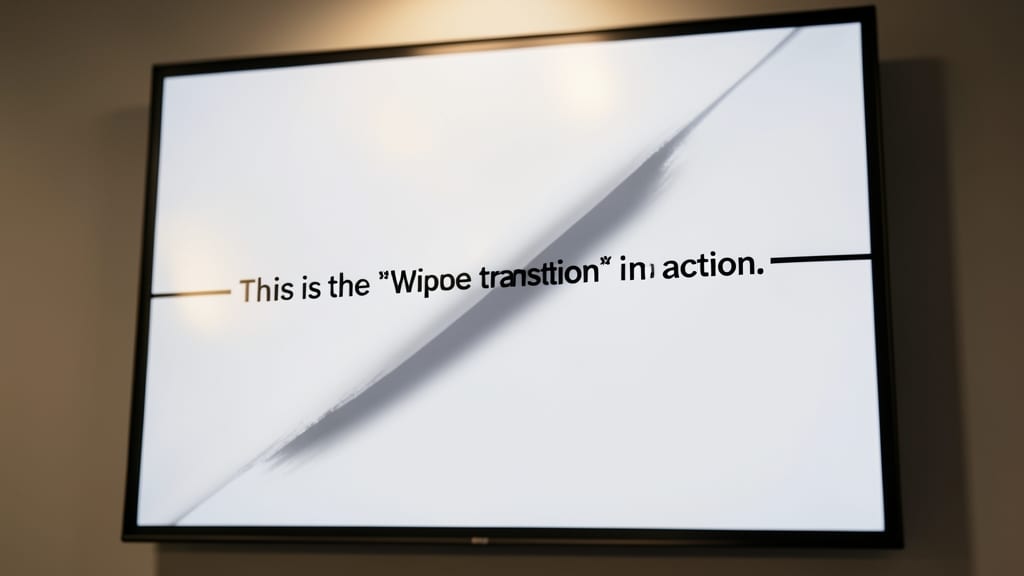
Need a transition that keeps your audience locked into a logical flow? The Wipe effect creates a clean, segmented reveal by sweeping content away like a curtain—ideal for presentations where structure matters most.
Available in horizontal, vertical, or diagonal directions, this transition works seamlessly with text-heavy slides or sequential processes. It’s especially effective when paired with timing controls to match your pacing. Unlike flashy effects, Wipe maintains professionalism while guiding your audience through complex topics.
Lawyers, educators, and trainers will love how it visually reinforces progression. Perfect for breaking down multi-step workflows or legal arguments without overwhelming your viewers. ✨
Pixelate Transition for Creative Disruption
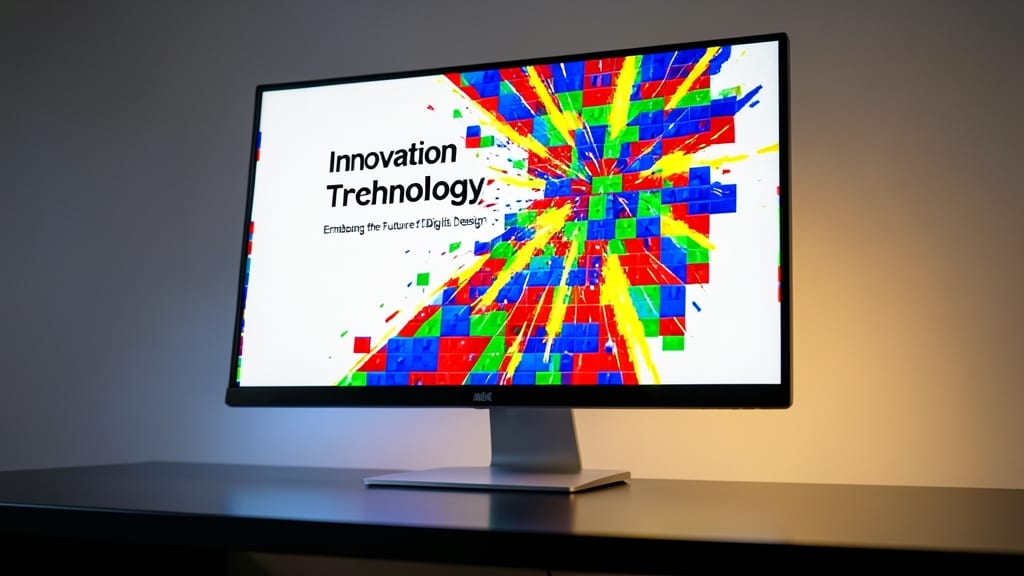
Tired of the same old slide transitions? The Pixelate Transition injects digital energy by breaking slides into colorful, blocky pixels—like a retro video game coming to life. It’s the perfect way to grab attention when you need to break the monotony or add a playful edge to your presentation.
This transition works by fragmenting each slide into a grid of pixels before reassembling into the next one, creating a visually striking effect. You can adjust the block size and transition speed to control the intensity, making it versatile for everything from advertising pitches to creative portfolios. It’s built into PowerPoint, so no extra tools or plugins are needed.
Ideal for designers, marketers, and entertainers, this transition shines when you want to stand out—whether you’re launching a campaign, sharing a fun project, or just keeping your audience engaged. ⚡
3D Turn Transition for Dramatic Reveals
When your presentation needs to feel like a grand reveal—think investor pitches or art showcases—the 3D Turn Transition delivers a cinematic twist. This effect rotates slides along an axis, creating a three-dimensional flip that feels like peeling back a curtain on your content. Unlike flat transitions, it adds depth and motion, making your slides feel more dynamic and immersive.
Available in PowerPoint’s Animation tab, this transition works best with slides featuring high-contrast visuals or bold designs. You can adjust the rotation speed and axis (horizontal or vertical) to control the drama—perfect for emphasizing key slides in a portfolio or product demo. Just ensure your content is clear before the transition begins to avoid motion sickness.
Ideal for artists, entrepreneurs, and storytellers, this transition turns ordinary slides into a visually striking experience. Use it sparingly—once per presentation—to leave a lasting impression. ✨