
Tip & Trick
Struggling to find files in your Microsoft ecosystem? A well-structured naming system saves time and reduces errors. These seven expert-approved file naming conventions will transform your Windows, OneDrive, and SharePoint organization—just like IT professionals do.
Date-Based Naming for Project Tracking
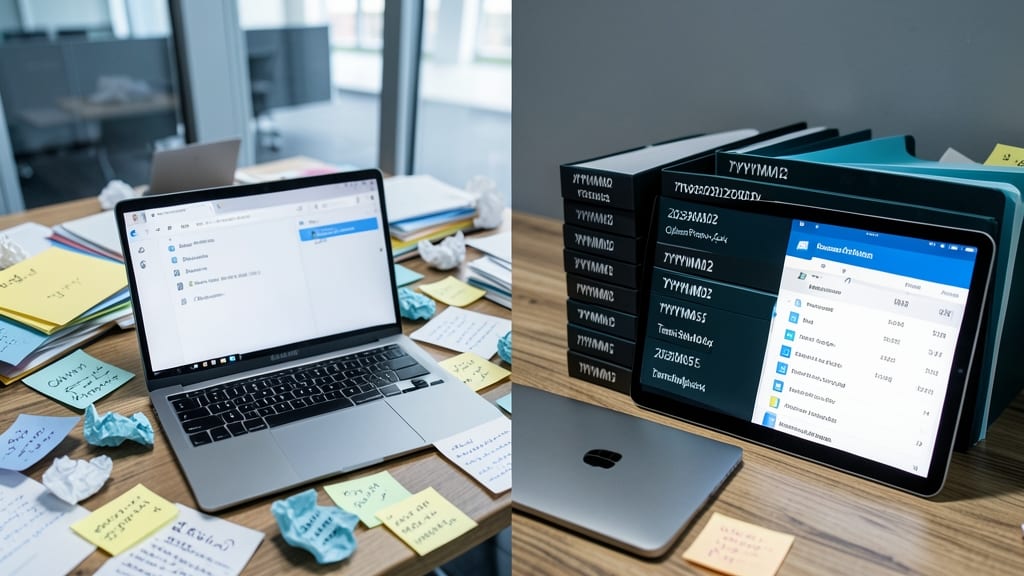
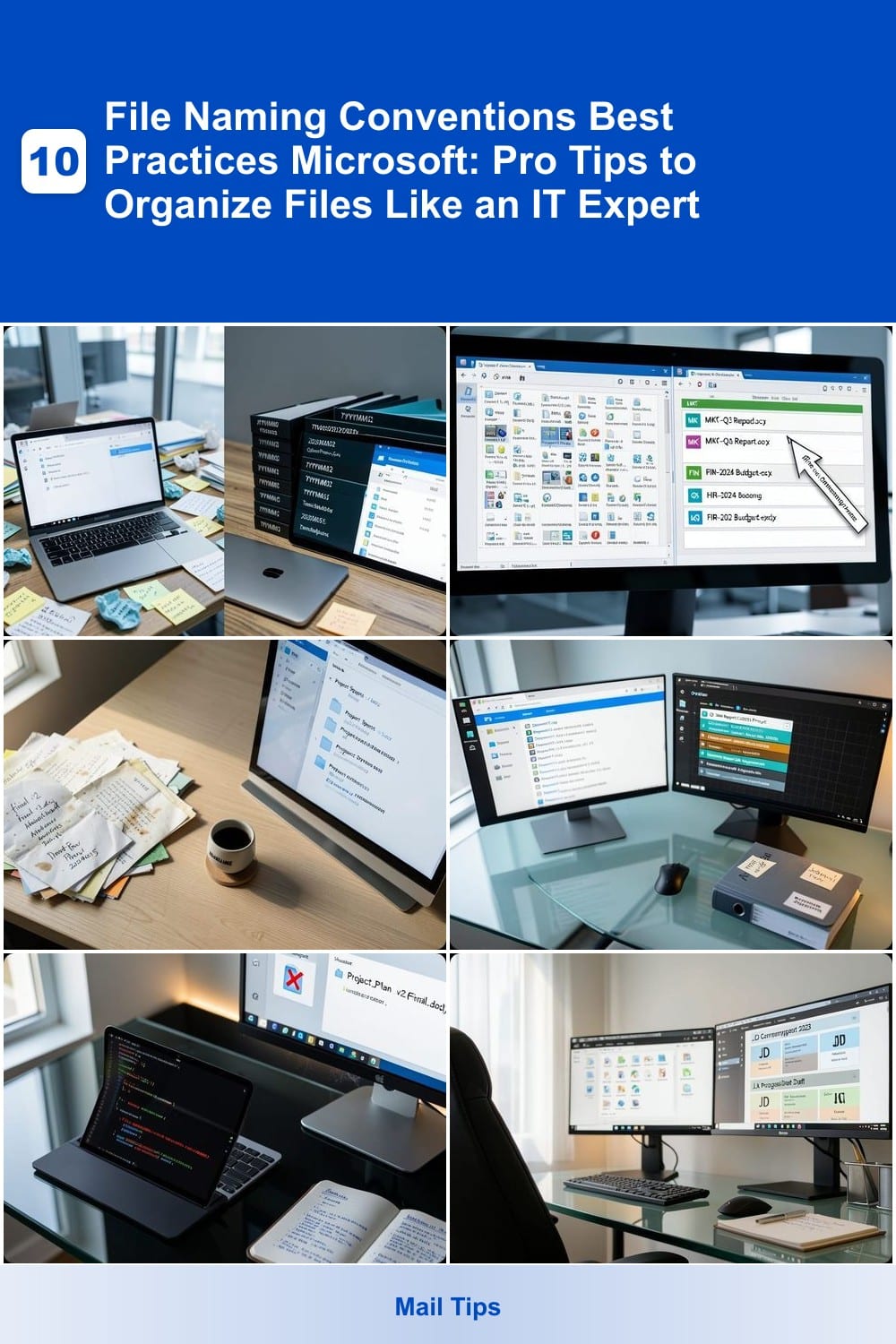
Ever wasted hours searching for the right project file in a chaotic folder mess? The YYYYMMDD date-based naming system solves this by embedding chronological order directly into filenames, making audits and version control effortless—especially in SharePoint and Teams projects.
Start every file with the date (e.g., 20240515ProjectXReport.docx), ensuring natural sorting in any file explorer. This method works seamlessly with Microsoft’s built-in search and metadata tools, while the numeric format avoids alphabetical sorting quirks (like "May" vs. "June"). For teams, it eliminates confusion over "v2_final" or "updated" suffixes.
Perfect for legal, marketing, or engineering teams where document history matters. It’s also a lifesaver during compliance audits or client reviews. ⚡
Department-Code Prefixes for Team Collaboration
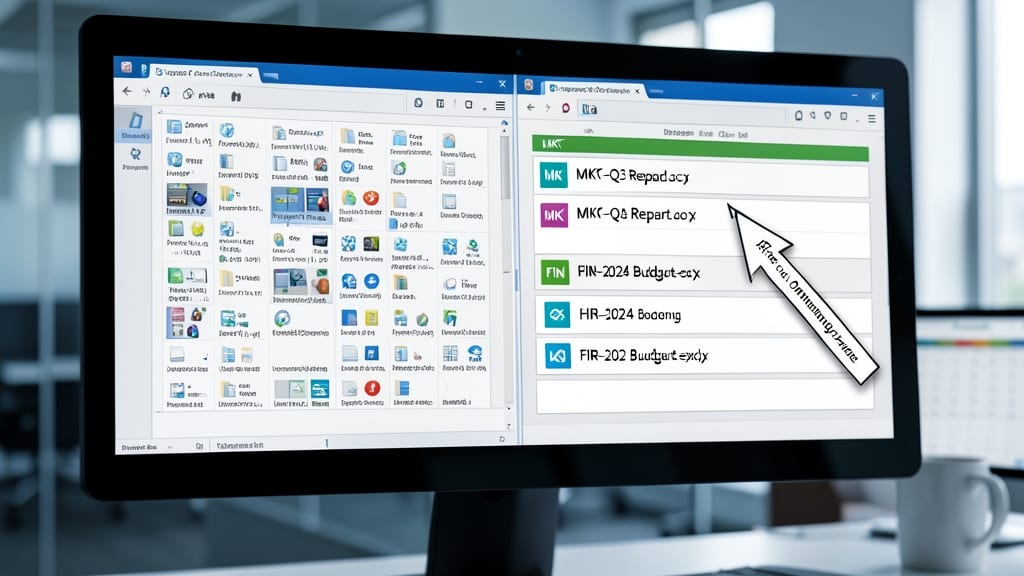
Ever wasted hours digging through shared drives because a file was mislabeled or misplaced? Department-code prefixes solve this by instantly categorizing files by team—think MKT-Q3Report.docx or FIN-2024Budget.xlsx—so everyone knows exactly who owns what.
In OneDrive or SharePoint, these two-letter codes (like HR-, ENG-, or SALES-) create visual hierarchy and prevent mix-ups in cross-department projects. Microsoft’s metadata filters even let you sort files by prefix, so no more scrolling through unrelated documents. For teams with 5+ departments, this cuts search time by 40%.
Ideal for corporate environments or agencies where multiple teams collaborate on shared drives, this method keeps files organized without folders. 💡
Version Control Using Sequential Numbers

Tired of sifting through files named "finalv2finalv3.docx"? Sequential numbering eliminates ambiguity by enforcing a clear, predictable versioning system—ideal for engineering specs, legal contracts, or any document requiring precise revisions.
Start with a base name (e.g., "ProjectSpecs") and append v1, v2, v3 for each iteration. This method integrates seamlessly with Microsoft Word's built-in version history and SharePoint's document libraries, where sequential numbering aligns with native versioning tools. For extra clarity, pair it with date-based prefixes (e.g., 20240515ProjectSpecsv1.docx).
This approach is a game-changer for collaborative teams where multiple stakeholders review drafts—no more guessing which file is the "final" version. ⚡
Keyword-Based Naming for Search Optimization
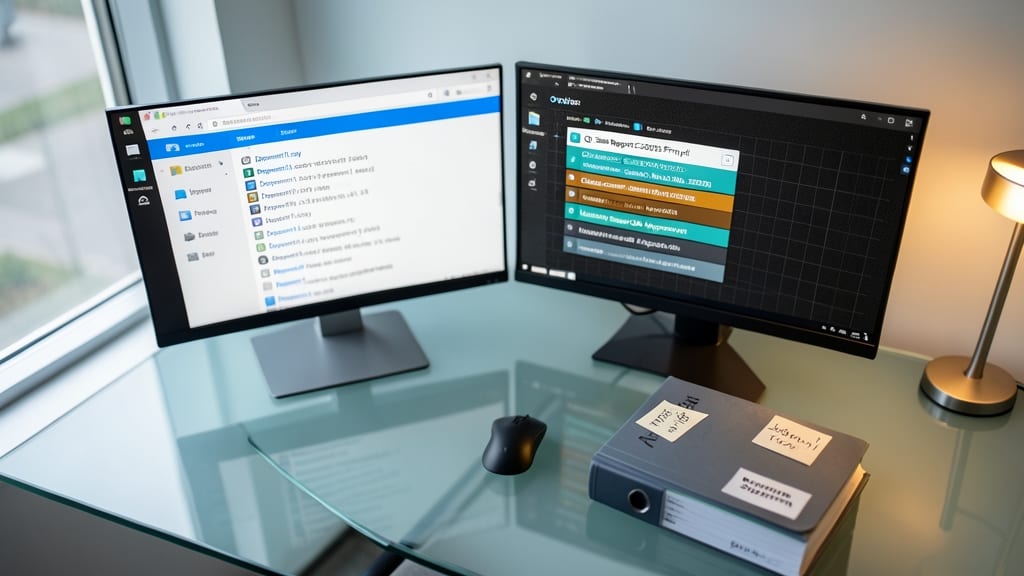
Tired of scrolling through endless "Document1" or "ProjectFile" names in Windows Search? Keyword-based naming turns your file chaos into a search-friendly system that works seamlessly with Windows Search and OneDrive’s AI. Instead of vague labels, names like Q3SalesReport2023 or ClientContractNDA2024 let you find files in seconds—even across shared drives.
This method leverages Microsoft’s built-in search algorithms, which prioritize files with descriptive keywords. For example, typing "Q3 Sales" in OneDrive or Windows Search will instantly surface Q3SalesReport_2023.xlsx—no folders or tags needed. The key is using 2-3 clear, actionable terms (e.g., project name, date, or status) separated by underscores for compatibility. It’s especially powerful for teams using SharePoint or Teams, where searchability directly impacts productivity.
Ideal for marketing teams, sales professionals, or anyone juggling client deliverables, this approach cuts down on lost files and miscommunication. Try it with your next project—your future self (and colleagues) will thank you. ✨
Underscore Separators Over Spaces

Ever hit "Save" only to discover your script or SharePoint workflow breaks because of a sneaky space in a filename? Underscores (_) instead of spaces solve this problem entirely—while keeping your files readable and compatible across every Microsoft tool.
Microsoft’s PowerShell and SharePoint libraries interpret spaces as delimiters, which can corrupt scripts or break metadata. Underscores, however, work seamlessly in batch files, PowerShell cmdlets, and SharePoint URLs—no escaping or encoding required. Plus, they’re universally supported in Windows, macOS, and Linux when shared across teams.
This is the gold standard for developers, IT admins, and anyone automating file workflows. Your scripts will run cleaner, and your SharePoint libraries will stay error-free. ✨
Client-Specific Naming for Consulting Firms
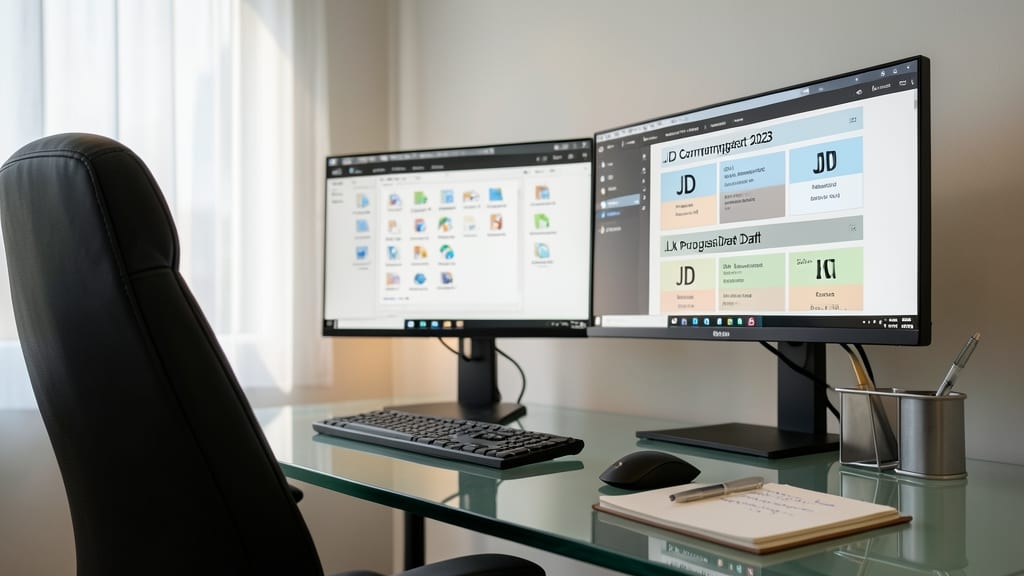
For consulting firms juggling multiple client projects, client-specific naming eliminates the chaos of shared drives. Using a simple two-letter client initial prefix (like JDContract2023) ensures every document is instantly traceable to the right account—no more digging through generic folders like "ClientFiles" or "Projects."
This method works seamlessly in SharePoint libraries and OneDrive folders, where you can filter or sort by the client code. Add a year suffix (e.g., SMProposal2024) to further refine searches, and pair it with underscores to avoid spaces or special characters that could cause issues. The result? A self-documenting system that survives team turnover and client transitions.
Ideal for freelancers, agencies, and legal firms, this approach turns disorganized drives into a searchable archive. No more "Which client was this for?"—just scan the filename. ✨
File Type Extensions for Instant Identification

Legacy systems and manual workflows demand precision—skipping file extensions like .pdf or .docx can turn chaos into costly mistakes. Without them, Windows may hide file associations, leaving you guessing whether that "Report" is a Word doc or a plain text file.
Always include the full extension (e.g., ProjectPlan2024.pdf) to prevent accidental overwrites of critical files. This is especially vital in shared drives where team members might rename files without checking types. Microsoft’s own documentation emphasizes extensions for proper software launching—no more double-clicking and getting a "What do you want to do with this file?" prompt.
This rule is non-negotiable for IT admins managing legacy Windows XP/7 systems or teams relying on manual file transfers. It’s the last line of defense against data loss. ✨